Cross-selling can change how much money your WooCommerce store makes per order.
According to recent data, stores that use cross-sell and upsell plugins see a 10 to 30% jump in revenue (Marketing LTB, 2026). Amazon gets nearly 35% of its total revenue from product recommendations alone.
Yet most WooCommerce stores still treat cross-selling as an afterthought. The built-in cross-sell feature in WooCommerce is limited. It only shows suggestions on the cart page.
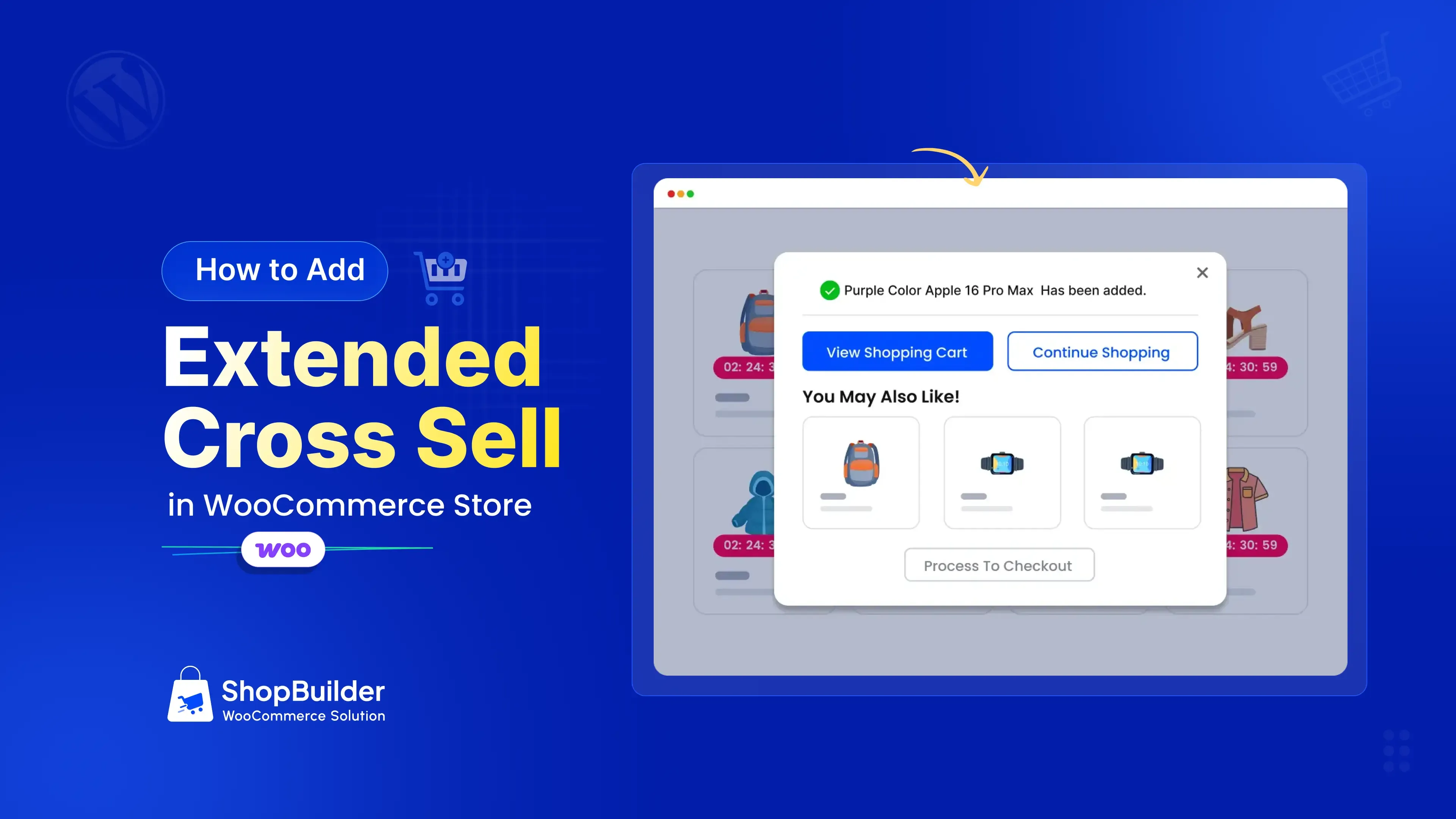
That is where the Extended Cross Sell comes in. It lets you show smart product recommendations the moment a customer adds something to their cart. In this guide, you will learn how to add extended cross sell in WooCommerce store, step by step.
What Is Cross-Selling in WooCommerce?
Cross-selling means suggesting products that go well with what a customer is already buying. If someone adds a laptop to their cart, you might suggest a laptop bag, a mouse, or a screen protector. The goal is simple: help the customer find useful items while increasing your average order value (AOV).
WooCommerce has three built-in product recommendation types, and they each work differently.
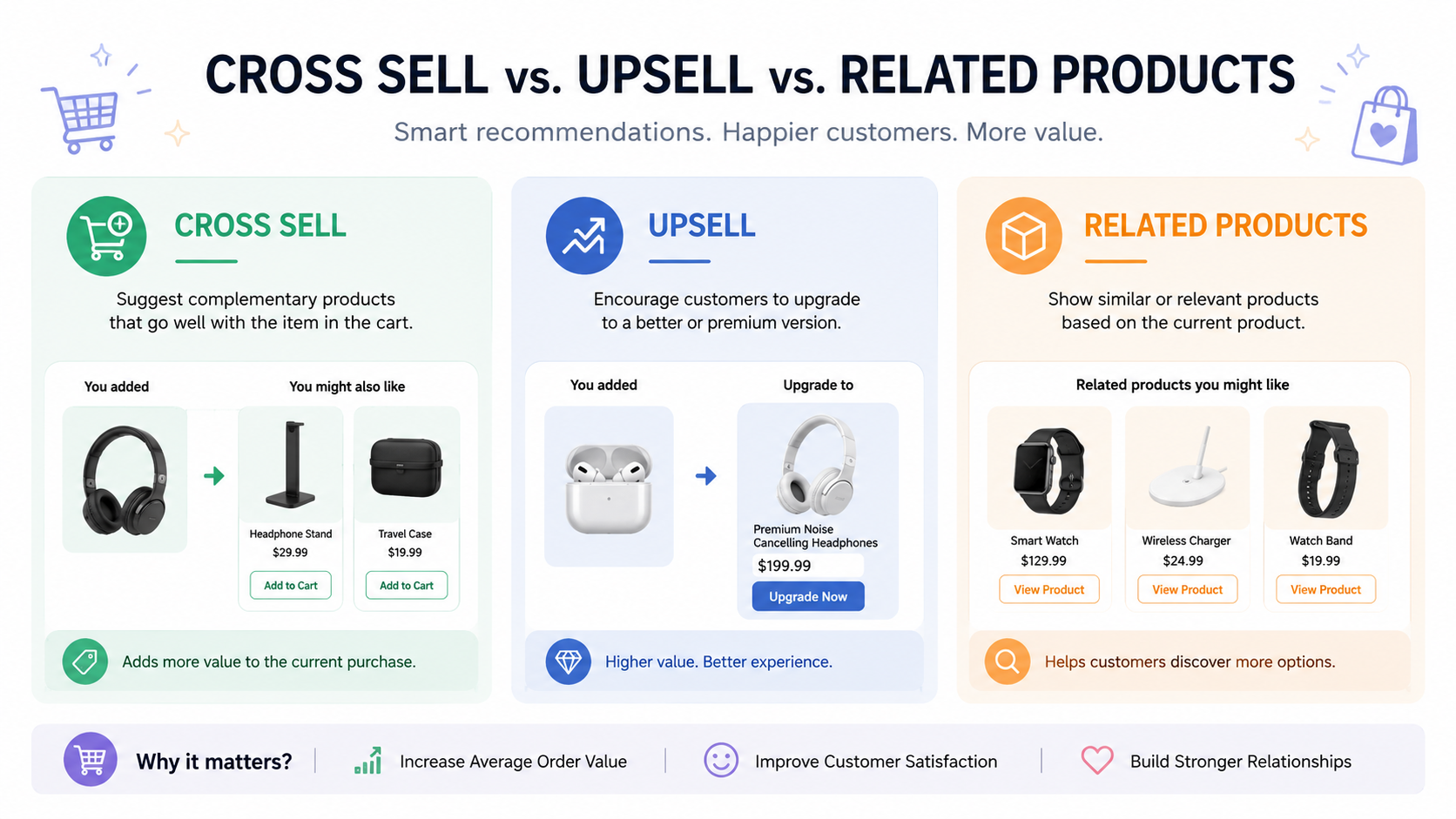
Cross-sells are products that complement the item in the cart. They appear on the cart page by default.
Upsells are better or more expensive versions of the product being viewed. They show up on the single product page.
Related products are items in the same category or with the same tags. WooCommerce generates these automatically on product pages.
Here is a quick way to remember the difference. An upsell says, “Here is something better.” A cross-sell says, “Here is something that goes great with that.”
Why the Default WooCommerce Cross-Sell Falls Short
WooCommerce includes a basic cross-sell feature out of the box. But it has some clear limits that hold store owners back.
- It only works on the cart page. By the time a customer reaches the cart, they may already be focused on checking out. They are less likely to browse more products at that stage.
- There is no pop-up trigger. The default cross-sell section sits below the cart table. Many shoppers scroll past it or never see it. There is no visual interruption that grabs attention at the right moment.
- You can only link cross-sell products manually. You have to edit each product one by one and add cross-sell items in the Linked Products tab. There is no option to pull from categories or custom product lists automatically.
- Styling options are limited. The appearance depends entirely on your theme. You cannot easily change colors, button styles, or borders without custom CSS.
- No delay or timing control. You cannot decide when the suggestion appears. It is always static on the cart page, which means you miss the chance to catch customers right when they click “Add to Cart.“
These gaps are exactly what the Extended Cross Sell module from ShopBuilder solves.
What Is the ShopBuilder Extended Cross Sale Module?
The Extended Cross Sale module is part of ShopBuilder, a WooCommerce page builder plugin built on Elementor. This module goes beyond the basic cross-sell by showing a smart pop-up right after a customer adds a product to their cart.
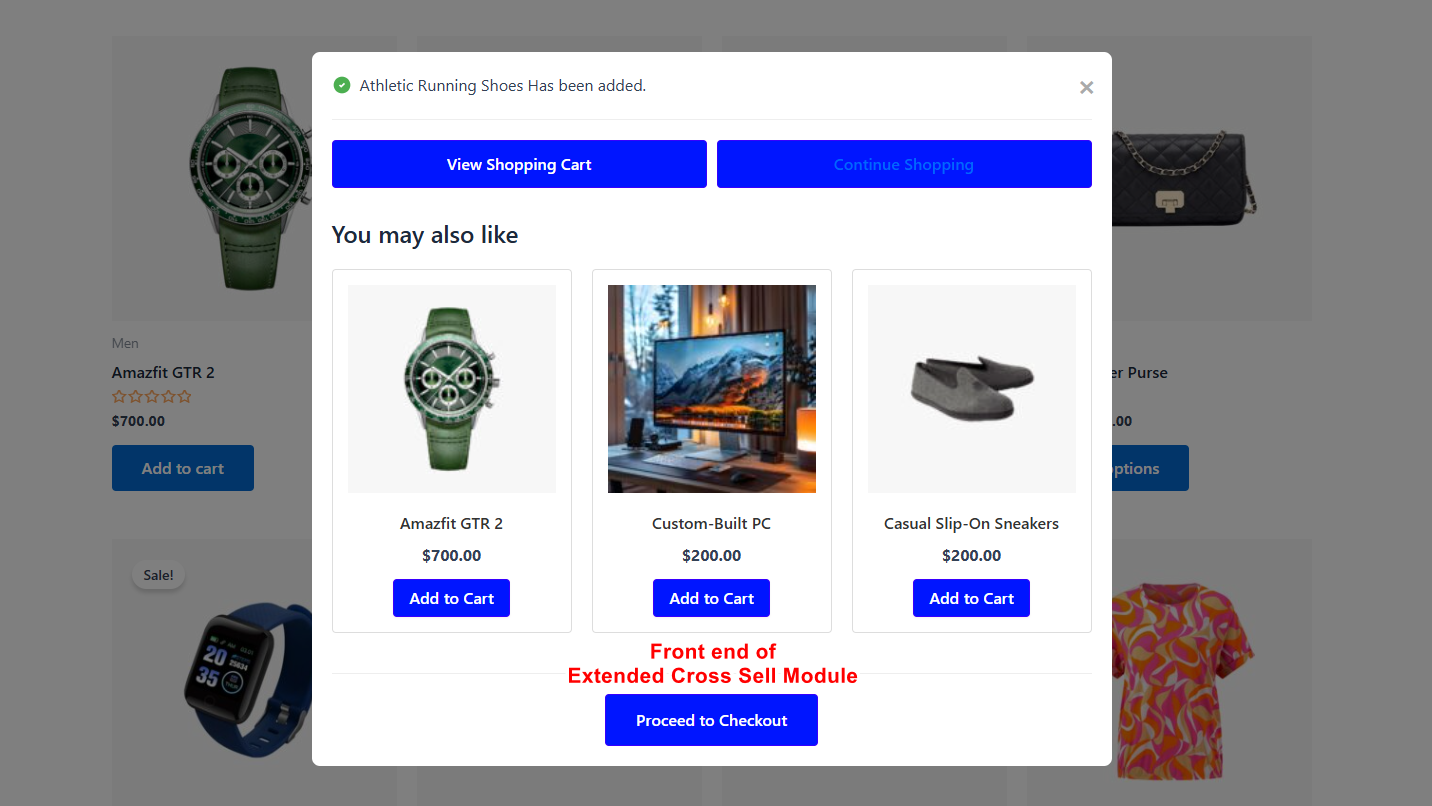
Instead of waiting for the cart page, the pop-up appears instantly. It can display cross-sell products, upsell products, related products, items from specific categories, or even a custom list of products you choose.
Here is what makes it different from the default WooCommerce cross-sell:
Pop-up triggered on “Add to Cart” click. The suggestion appears at the most important moment, when the customer just showed buying intent.
Five product source options. You can display cross-sells, upsells, related products, products from specific categories, or a custom product selection.
Adjustable pop-up delay. You control exactly when the pop-up appears, down to the millisecond.
Two template layouts. Choose between different pop-up designs to match your store’s look.
Product limit control. Set the maximum number of products shown in the pop-up.
Full style customization. Change button colors, backgrounds, borders, and hover effects to fit your brand.
Good Read: What Is WooCommerce In WordPress: A Beginner’s Guide
What You Need Before Getting Started
Before you set up the Extended Cross Sale module, make sure you have these in place:
- A WordPress website running version 6.1 or higher.
- WooCommerce installed and activated (latest version recommended).
- Elementor page builder installed (latest version recommended).
- ShopBuilder Pro plugin installed and activated. The Extended Cross Sale module is a Pro feature.
- PHP version 7.4 or higher on your hosting server.
If you already have these running, you can set up the module in under 10 minutes.
How to Add Extended Cross Sell in WooCommerce (Step by Step)
Step 1: Install and Activate ShopBuilder Pro
If you have not installed ShopBuilder yet, download it from the RadiusTheme website. Upload the plugin through your WordPress dashboard by going to Plugins > Add New > Upload Plugin. Click “Install Now” and then “Activate.“
Step 2: Enable the Extended Cross Sell Module
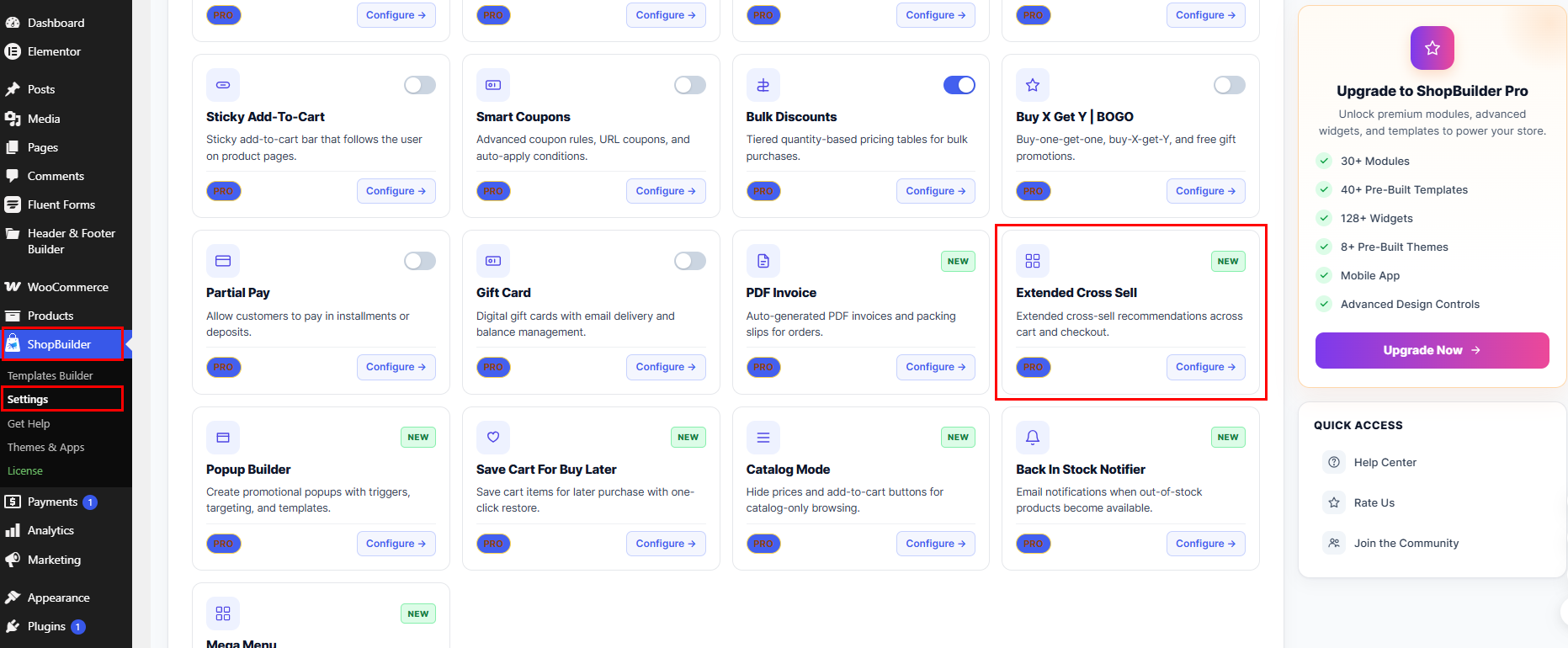
Go to your WordPress admin menu. Navigate to ShopBuilder > Settings > Modules. Find the Extended Cross Sell module in the list. Toggle the button to activate it.
Step 3: Configure General Settings
After enabling the module, click on it to open the settings. You will see the General tab with these options:
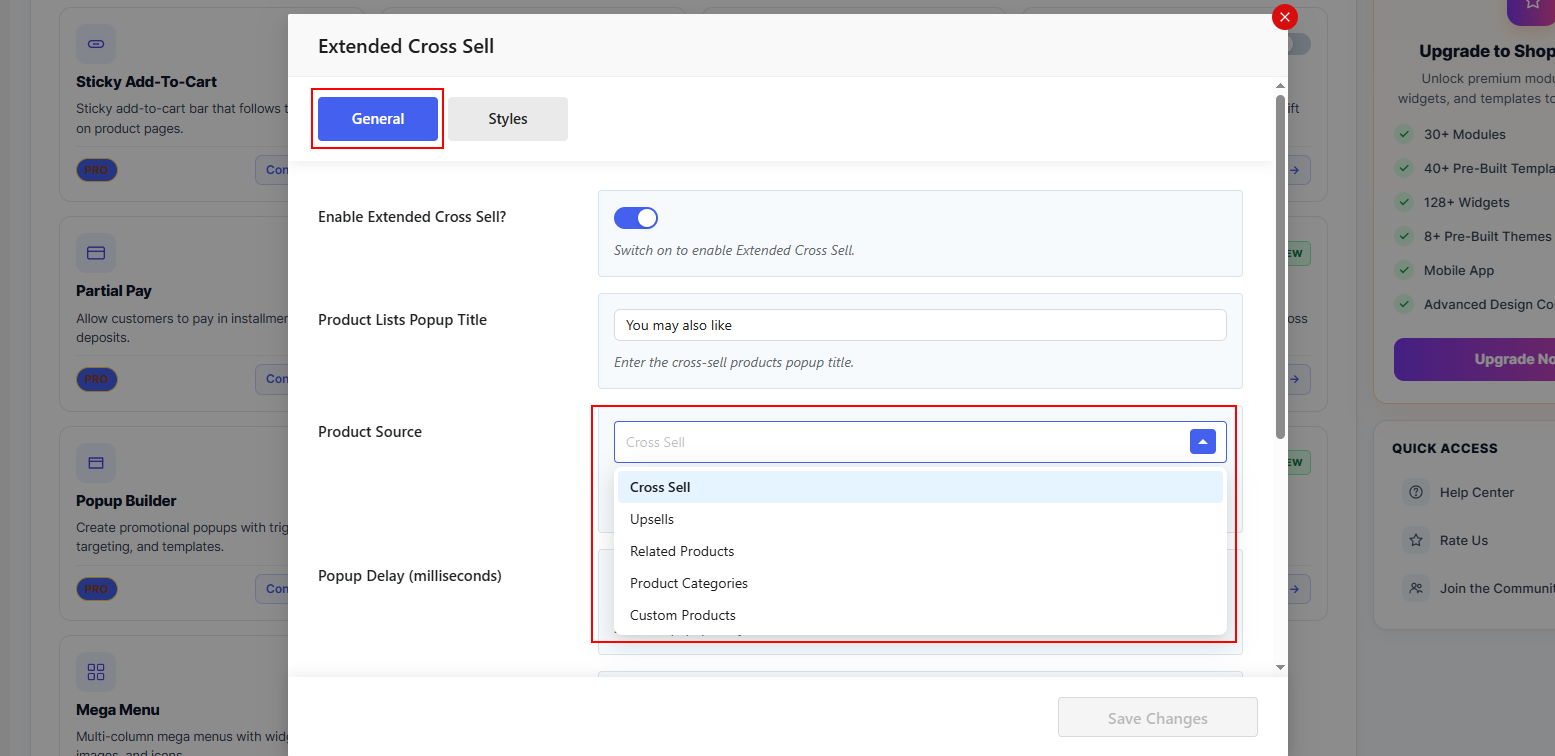
Product Lists Popup Title: Write a short, attention-grabbing title for the pop-up. Something like “You might also like” or “Complete your order” works well. Keep it clear and action-oriented.
Product Source: This is where you decide what products appear in the pop-up. You have five choices:
- Cross-sells pull from the cross-sell products you have linked in each product’s Linked Products tab.
- Upsells pull from the upsell products you have linked in the same tab.
- Related Products pull from items in the same category or with matching tags.
- Product Categories let you choose entire categories to display. A new “Applicable Categories” field will appear when you select this option.
- Custom Products let you hand-pick specific products to show. An “Applicable Products” field will appear for your selections.
Popup Delay (milliseconds): Set how long the pop-up waits before appearing after a customer clicks “Add to Cart.” A delay of 300 to 500 milliseconds feels natural. Too fast and it feels aggressive. Too slow and the customer moves on.
Template Layout: Choose from two pre-built pop-up designs. Preview both and pick the one that fits your store’s visual style.
Product Limit: Set the maximum number of products that show in the pop-up. Showing 3 to 4 products usually works best. Too many products can overwhelm the customer and slow the decision.
Step 4: Link Cross-Sell and Upsell Products (If Using Those Sources)
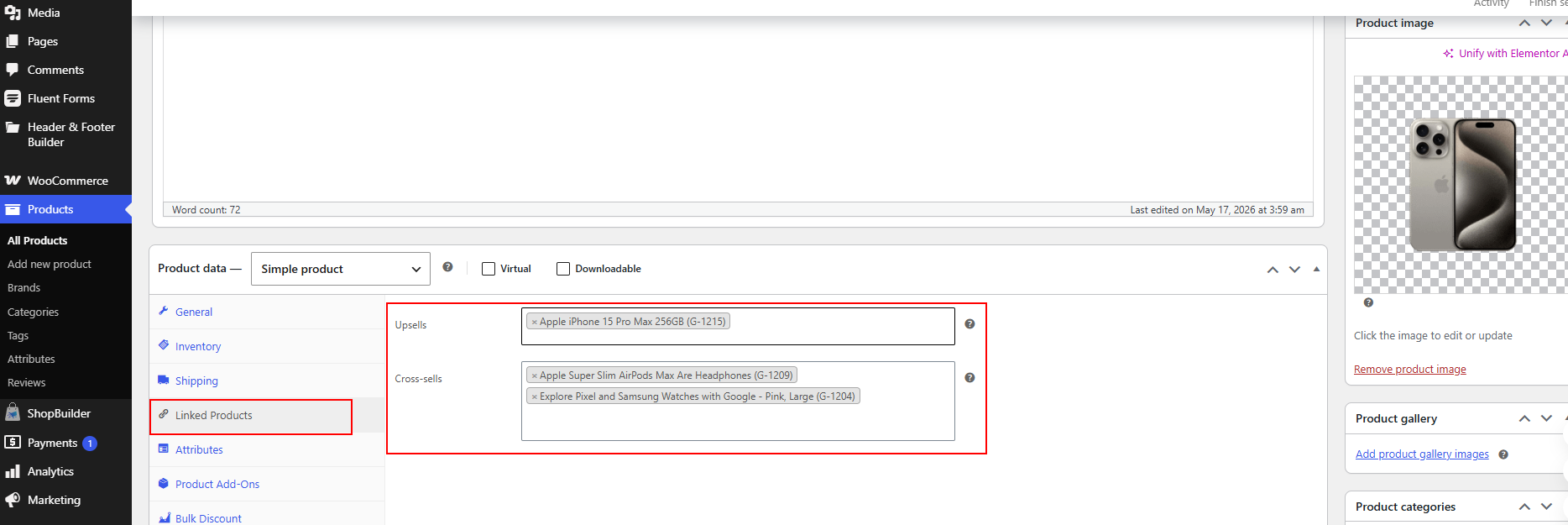
If you selected “Cross-sells” or “Upsells” as your product source, you need to link products on each product’s edit page. Go to Products > All Products in your WordPress admin. Click on a product to edit it. Scroll down to the Product Data section. Click the Linked Products tab.
In the Cross-sells field, start typing the name of a product you want to suggest. WooCommerce will show matching products after three letters. Add all the relevant items one by one. Do the same for the Upsells field if needed.
Click Update to save the product.
Repeat this for each product where you want cross-sell or upsell suggestions.
Step 5: Customize the Pop-Up Style
Go back to the Extended Cross Sell module settings and click the Style tab. Here you can change:
- Button Background color
- Button Text Color
- Border Color
- Border Hover Color
- Button Hover Background color
- Button Hover Text Color
Match these colors to your store’s brand. Consistent branding builds trust and makes the pop-up feel like a natural part of the shopping experience, not an interruption.
Step 6: Save and Test
Click Save Changes to apply all your settings. Now open your store’s front end in a new browser tab. Add a product to the cart. The cross-sell pop-up should appear with your chosen products, title, layout, and styling.
Test it on both desktop and mobile devices. Make sure the pop-up loads smoothly and the products are relevant.
Best Practices for WooCommerce Extended Cross-Selling
Setting up the module is just the beginning. How you use it determines the results. Follow these practices to get the most from your cross-sell pop-ups.
Suggest products that make sense together. A phone case for a phone buyer makes sense. A winter coat suggestion for someone buying sandals does not. Relevance is everything.
Keep the pop-up title short and clear. Titles like “Complete Your Look,” “Pairs Well With,” or “Customers Also Bought” are direct and easy to understand.
Limit the product count to 3 or 4. Too many options create decision fatigue. A focused selection converts better than a crowded one.
Set a natural pop-up delay. A 300 to 500 millisecond delay gives the customer time to register their “Add to Cart” action before seeing the suggestion. It feels smooth instead of pushy.
Review your cross-sell links regularly. Products go out of stock. New items launch. Seasonal trends change. Check your linked products every month and update them.
Use the “Custom Products” source for promotions. Running a sale on specific items? Use the custom product source to push those products through the pop-up during the promotion period.
Test different product sources. Try cross-sells for one month, then switch to category-based suggestions. Compare which source drives a higher AOV.
Good Read: Ecommerce Conversion Rate (2026 Guide)
Cross-Sell vs. Upsell vs. Related Products: When to Use Each
Understanding when to use each recommendation type helps you build a stronger strategy.
Use cross-sells when you want to add complementary items to the cart. Example: A customer buys a camera. Cross-sell a memory card, a camera bag, and a tripod.
Use upsells when you want to move the customer to a higher-value product. Example: A customer views a basic hosting plan at $9 per month. Upsell them the premium plan at $19 per month with more features.
Use related products when you want to show broader options from the same category. Example: A customer views a blue t-shirt. Related products show other t-shirts in different colors or styles.
The Extended Cross Sale module lets you use any of these in the pop-up, so you are not locked into one approach.
How Extended Cross-Selling Increases Average Order Value
The math behind cross-selling is simple. If your store’s average order is $79 and a cross-sell adds a $15 item to 20% of orders, you have just added $3 to your overall AOV. That might sound small, but over thousands of orders, it adds up fast.
Here is what the data shows:
Stores that add cross-sell suggestions at strategic points see average order values increase by up to 22%, according to FunnelKit’s internal data. WooCommerce stores using upsell and cross-sell plugins report 10 to 30% higher revenue overall. And acquiring a new customer costs 5 to 25 times more than selling more to an existing one.
Cross-selling is not about tricking customers. It is about making their purchase more complete and useful. When the suggestions are relevant, customers appreciate them.
Common Mistakes to Avoid in Extended Cross-Selling
- Showing random products. If the pop-up displays items that have nothing to do with what the customer is buying, it breaks trust and feels spammy.
- Overloading the pop-up. Showing 8 or 10 products in the pop-up makes it look cluttered. Stick to 3 or 4 well-chosen items.
- Ignoring mobile users. Test the pop-up on phones and tablets. A pop-up that works on desktop but covers the entire mobile screen with no easy close button will frustrate shoppers.
- Setting the pop-up delay too low. A pop-up that appears instantly (0 milliseconds) feels intrusive. Give it a brief pause.
- Never updating linked products. Out-of-stock items showing in the pop-up is a bad experience. Keep your product links current.
- Using vague pop-up titles. “Check These Out” does not tell the customer anything useful. “Goes Great With Your [Product]” is more specific and helpful.
Frequently Asked Questions (FAQs)
Does WooCommerce have built-in cross-selling?
Yes. WooCommerce lets you add cross-sell products through the Linked Products tab on each product’s edit page. These products appear on the cart page. However, the built-in feature lacks pop-up functionality, timing control, and advanced product source options.
Can I choose which products appear in the cross-sell pop-up?
Yes. The Extended Cross Sale module offers five product source options: cross-sells, upsells, related products, products from specific categories, and custom hand-picked products.
Is the Extended Cross Sale module free?
No. The Extended Cross Sale module is part of ShopBuilder Pro. You need the Pro version to access this feature.
Will the pop-up work on mobile devices?
Yes. The pop-up is responsive and works on both desktop and mobile devices. Always test it on different screen sizes to ensure a smooth experience.
How many products should I show in the pop-up?
3 to 4 products is the sweet spot. It gives enough variety without overwhelming the customer.
Can I change the look of the pop-up?
Yes. The Style tab in the module settings lets you customize button colors, background colors, border colors, and hover effects to match your store’s branding.
Start Turning Single Purchases Into Bigger Orders
Every “Add to Cart” click is a chance to suggest something useful. With the Extended Cross Sale module from ShopBuilder, you can show the right products at the right time, in a pop-up that looks professional and feels natural.
Set it up once. Link your products. Customize the style. Then watch your average order value grow without spending extra on ads or traffic.
Ready to try it? Get ShopBuilder Pro and start using the Extended Cross Sale module today.