A customer writes, “Please cancel my order.” You open WooCommerce, change the status to Cancelled, and move on. Three days later, they write again: “Where is my refund?”
Here is the catch. In WooCommerce, cancelling an order does not send any money back. It may not email the customer either. One status change fixes the order. It does not fix the rest.
This guide shows you the one-minute way of how to cancel an order in WooCommerce. Then it covers the steps most guides skip: refunds, stock, emails, bulk cancels, and auto-cancelling unpaid orders. You will also learn how to let customers cancel on their own, so fewer of these emails ever reach you.
Quick steps:
- Go to WooCommerce > Orders.
- Open the order you want to cancel.
- Change Status to Cancelled.
- Click Update.
- If the customer paid, click Refund and return the money.
- Let the customer know what happened.
Cancelled, refunded, failed: what is the difference?
Pick the right status first. It decides what happens to your stock, your money, and your reports.
| Status | What it means | What happens to money | What happens to stock |
| Cancelled | An admin or the customer cancelled the order | Nothing. No refund is sent | Returned to inventory if stock management is on |
| Refunded | An admin fully refunded the order after payment | Returned through the gateway, or only recorded if you used a manual refund | You can tick a restock box while refunding |
| Failed | The payment failed or was declined | No payment was taken | Returned if it was reduced before the failure |
| Pending payment | The order exists but is not paid | Nothing yet | Held for a set time, then released |
| On hold | Waiting for you to confirm payment | Not confirmed yet | Already reduced |
Which one should you use?
- The customer changed their mind before shipping: set the order to Cancelled, then refund if they paid.
- The customer paid and the goods came back after delivery: use a Refund and tick the restock box.
- The payment never went through: you do not need to do anything. WooCommerce sets Failed by itself.
- You are cleaning out test or junk orders: use Move to Trash, not Cancelled. Real sales should stay in your records.
How to cancel one order in WooCommerce
You need an Administrator or Shop Manager account. This takes about a minute.
- Log in to your WordPress dashboard.
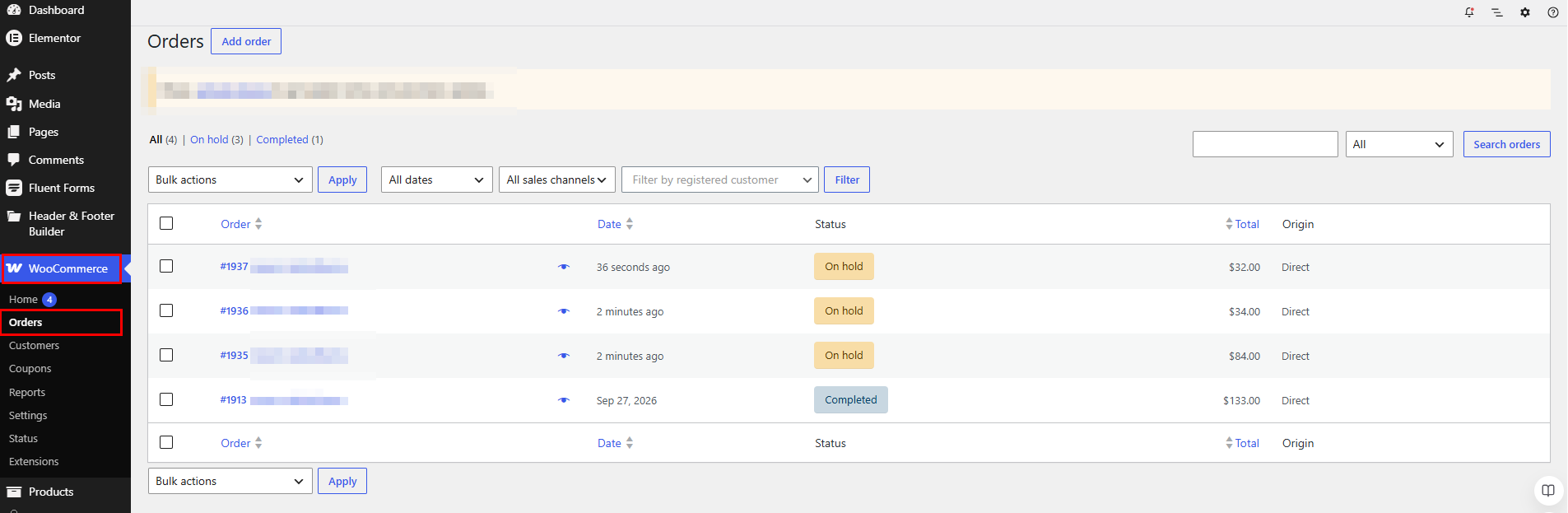
- Go to WooCommerce > Orders.
- Find the order. Type the order number, the customer name, or an address in the search box.
- Click the order to open it.
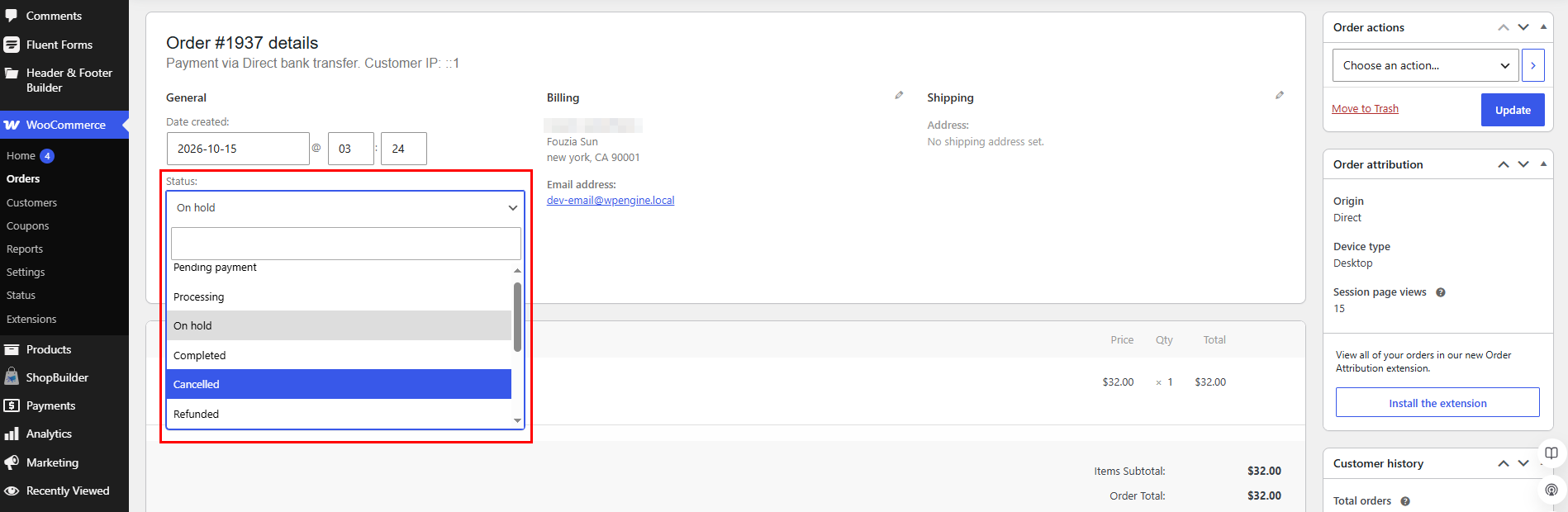
- In the Status box, choose Cancelled.
- Click Update.
- Look at the Order notes on the right. You should see a note that the status changed. If stock was reduced earlier, you should also see a stock note.
- If the customer paid, refund the order. The next sections show how.
Faster way: on the Orders list, click the eye icon next to an order. A preview window opens, and you can change the status from there without opening the full order.
Tell the customer why. Use the Order notes box, choose Note to customer, and write a short message. A line like “We cancelled order #1234 because the item is out of stock. Your refund will arrive in 5 to 7 days” saves you a support email later.
How to cancel many orders at once
WooCommerce has a bulk action for this. It is useful after a stock problem, a payment outage, or a pile of abandoned unpaid orders.
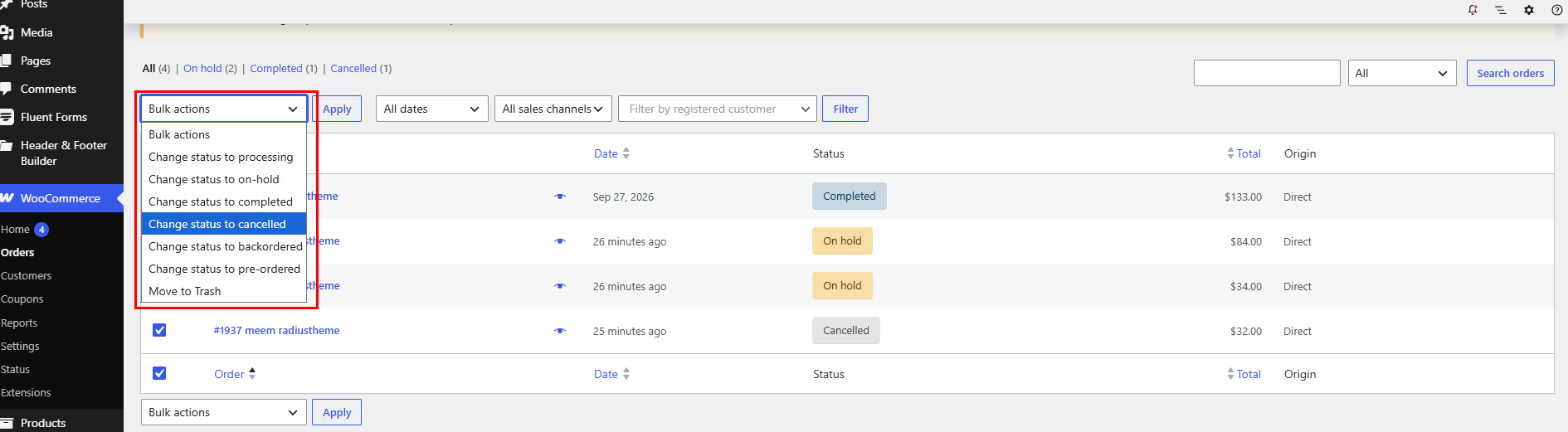
- Go to WooCommerce > Orders.
- Tick the box next to each order. To pick every order on the page, tick the box in the table header.
- Open the Bulk actions menu above the table and choose Change status to Cancelled.
- Click Apply.
The bulk menu also has options for Processing, On hold, Completed, and Move to Trash.
Three things to know before you click Apply:
- It does not refund anyone. Refunds are done one order at a time.
- Stock returns for every order in the batch. That is usually what you want, but check your product stock after a big batch.
- Status emails can fire for each order. If you are cancelling dozens of orders, check your email settings first so you do not surprise customers.
Tip: open Screen Options at the top right of the Orders page and raise the number of orders per page. You can select more orders in one go.
What happens after you cancel an order
Most guides stop at “change the status.” Here is what WooCommerce does next, and what it leaves for you.
Stock goes back. If stock management is on and stock was reduced for that order, WooCommerce adds the items back to inventory. It only restores stock it reduced earlier. An order that never reduced stock will not add any.
Money stays put. The customer is not refunded. WooCommerce says plainly that setting an order to Cancelled or Refunded does not refund the customer by itself.
The customer may get no email. For years, the “Cancelled order” email went only to the store admin. Newer versions of WooCommerce have added a customer-facing cancellation email, and reports say it depends on the order’s earlier status. Do not guess. Go to WooCommerce > Settings > Emails, open Cancelled order, and check the settings. Then cancel a test order and see who gets what. If the customer gets nothing, send a Note to customer from the order page.
The order stays in your list. A cancelled order keeps its number and history. That is good for your records. It is also why you should not trash real orders to tidy up.
How to cancel an order and refund the customer
If the customer paid, do the refund right after you cancel.
- Open the order from WooCommerce > Orders.
- Click the Refund button in the order summary.
- Enter the quantity for each item you are refunding. The amount fills in for you. For a shipping or fee refund, type the amount.
- Add a refund note if you want one.
- Click Refund via [your payment gateway]. If your gateway does not support refunds, the button says Refund manually instead.
- Check the Order notes for a “Successfully refunded” message.
Automatic vs manual refunds. An automatic refund sends the money back through the same payment method. A manual refund only records the refund in WooCommerce. You still have to return the money yourself, for example in your payment dashboard or by bank transfer. Cash on delivery and cheque payments usually need a manual refund. Payment gateway fees are normally not returned to you.
Partial refunds. If you refund less than the full order, the status does not change to Refunded, and the customer’s email mentions a partial refund.
Watch the restock box. The refund screen has a “Restock refunded items” option. If you already cancelled the order, WooCommerce has put the stock back. Ticking the box as well may add the items twice. Check the product’s stock count after you finish. These details come from the WooCommerce refund guide.
Let customers cancel on their own, and auto-cancel unpaid orders
Every cancellation you handle by hand is a support ticket. Two settings cut that down.
What customers can cancel by default
WooCommerce lets customers cancel from the My Account page, but only when the order is Pending payment or Failed. Once an order is Processing or On hold, there is no cancel button. That is the gap behind many “how do I let customers cancel?” questions in forums. The default list of cancellable statuses is a filter that developers can change, called woocommerce_valid_order_statuses_for_cancel.
If you want customers to cancel paid orders before you ship them, a plugin is the safer route. Look for these features:
- A cancel button limited to the order statuses you choose
- A time limit, such as 30 minutes after checkout
- A reason field, so you learn why people cancel
- Emails to you and to the customer
- Refund handling, or at least a clear request flow for you to approve
Plugins that cover this include Customer Order Cancellation for WooCommerce, Customer Cancel Order for WooCommerce from Bright Plugins, and the free Order Cancellation & Returns for WooCommerce. Before you install any of them, check the “last updated” and “tested with” lines on the plugin page. Some cancel-order plugins have not been tested with recent WordPress releases.
Auto-cancel unpaid orders with Hold stock
Unpaid orders can lock up your stock. WooCommerce can cancel them for you.
- Go to WooCommerce > Settings > Products > Inventory.
- Find Hold stock (minutes). The default is 60.
- Set the time you want. For example, 1440 minutes is one day.
- Click Save changes.
After that time, eligible Pending payment orders created at checkout are cancelled, and their stock is released. The order note reads “Unpaid order cancelled – time limit reached.” To switch the feature off, clear the field.
A few limits to know:
- It needs stock management turned on. Without it, nothing is cancelled automatically.
- It only touches Pending payment orders. Failed or on-hold orders are left alone.
- It is not exact. WooCommerce runs the cleanup on a schedule, so an order can sit a while past your limit. One developer’s write-up estimates the worst case at about double your Hold stock time, plus cron delay. Developers can shorten this with the woocommerce_cancel_unpaid_orders_interval_minutes filter.
A better idea than cancelling right away: send a payment reminder first. Many customers just forget. A friendly email at 24 hours with a payment link saves some of those sales.
Common problems and how to fix them
Stock did not come back after cancelling. Check these in order:
- Is stock management on for the product? Open the product and look at the Inventory tab.
- Was stock ever reduced for this order? WooCommerce only returns stock it took out. Orders that were never paid may not have reduced anything.
- Do you have custom code or a plugin that turns off restocking? Some stores do this on purpose.
- Fix it by hand if needed. Edit the product and set the right stock number, then add an order note so you remember why.
Orders cancel by themselves. If you see “Unpaid order cancelled – time limit reached” in the order notes, the Hold stock setting did it. Customers who pay slowly, such as bank transfer or delayed payment methods, can hit this. Raise the number of minutes, or clear the field, under WooCommerce > Settings > Products > Inventory.
Pending orders are not cancelling on time. The cleanup runs on a schedule, so it can lag. If you need it tighter, ask a developer to shorten the interval with the filter mentioned above. Also confirm that WP-Cron or your server cron is running.
The customer paid, but the order shows Cancelled. This happens when payment lands after the Hold stock time ran out. Check the payment in your gateway dashboard first. If the money is there, set the order back to Processing. Then check the product stock, because the item may have sold to someone else in the meantime. If it is gone, refund the customer and say why.
The Refund button fails or is missing. Your payment method may not support automatic refunds. Use Refund manually and return the money from your payment dashboard.
The customer says they never heard from you. See the email section above. Test the Cancelled order email, and add a note to customer when in doubt.
Need to undo a cancellation? Change the status back, for example to Pending payment or Processing, and click Update. WooCommerce may reduce stock again, so check the count afterward.
Set a cancellation policy that protects both sides
Clear rules cut arguments and chargebacks. They also help customers trust you before they buy.
- Write a short policy and link it in the footer and checkout. Say who can cancel, until when, and how refunds work. For example: “You can cancel any order before it ships. We refund the full amount within 5 business days.”
- Set a cutoff. Most stores use “before shipping.” Some add a short window, such as 24 hours.
- Say how long refunds take. Customers worry most about the money. A clear time frame removes most follow-up emails.
- Offer store credit as a choice. Some customers accept credit instead of a refund. You keep the sale in your store.
- Send a reminder before you auto-cancel. A nudge at 24 hours recovers sales that would be lost.
- Review Pending payment and On hold orders every day. Old unpaid orders hold stock and hide real demand.
- Write the reason in the order notes. “Out of stock,” “customer request,” “fraud check.” Future you will be glad.
- Cancel fast when you cannot fulfil. A quick, honest message beats a late shipment and a bad review.
If you want a starting point for the wording, see the refund policy page guidelines from WooCommerce.
Frequently Asked Questions
How do I cancel an order in WooCommerce?
Go to WooCommerce > Orders, open the order, change Status to Cancelled, and click Update. To cancel several at once, tick them on the Orders list and use Bulk actions > Change status to Cancelled.
Does cancelling an order refund the customer?
No. Setting the status to Cancelled does not send any money back. If the customer paid, open the order and use the Refund button too.
Does cancelling an order restore stock?
Yes, when stock management is on and the order had reduced stock. WooCommerce returns the items to inventory. It will not add stock that was never taken out.
What is the difference between Cancelled and Refunded?
Cancelled means the order was stopped. Refunded means money was returned after payment. A cancelled order may still need a refund. A refunded order is one where an admin has refunded the full value.
Can customers cancel their own orders?
By default, only for Pending payment and Failed orders, from the My Account page. To let them cancel paid orders, use a plugin or a developer filter, and decide how refunds will be handled.
Can I cancel a completed order?
You can change the status, but a completed order has already been fulfilled. A refund, with the restock box ticked if the goods came back, shows what actually happened and keeps your records honest.
Your next step
Cancelling an order takes one status change. Doing it well means three more checks: refund the money, confirm the stock, and tell the customer.
Try this today. Place a test order, cancel it, and watch what happens. Look at the stock count, the order notes, and which emails go out. Then open WooCommerce > Settings > Products > Inventory and decide if 60 minutes is the right Hold stock time for your shop. Ten minutes of testing now saves you from messy cancellations on a busy day.