A customer asks, “Where is my order?” You already know the answer. It shipped this morning. The fastest way to tell them, and keep a record of it, is a customer order note.
WooCommerce has this feature built in. You type a message on the order screen, and WooCommerce emails it to the buyer. The note also stays on the order, so your whole team can see what was said.
This guide shows you how to do it step by step. You will also learn what the customer sees, why some notes never arrive, and how to send notes automatically with a little code.
What are WooCommerce order notes?
WooCommerce order notes are short messages saved on a single order. They create a timeline of everything that happened to that order: payments, status changes, team comments, and messages to the buyer.
The Order notes panel holds three types of notes. A fourth kind of note, the one a shopper types at checkout, lives in a different place. Mixing these up is the most common reason store owners get confused, so here is how they compare.
| Note type | Who writes it | Can the customer see it? | Is it emailed? | Where you find it |
| Customer note | You or your staff | Yes, in My account | Yes, right away | Order notes panel, marked Sent to customer |
| Private note | You or your staff | No | No | Order notes panel |
| System note | WooCommerce or a plugin | No | No (some events trigger their own emails) | Order notes panel, gray background |
| Customer provided note | The shopper, at checkout | Yes, on their order details | Shown in order emails |
When to use each type
- Customer note: shipping updates, tracking numbers, delays, answers to a checkout request, pickup details.
- Private note: team reminders, fraud checks, “customer called, wants Friday delivery”, refund reasons.
- System note: you never write these. Read them when you need to check what a payment gateway or plugin did.
How to add an order note for a customer (step by step)
You need an Administrator or Shop Manager account. The whole process takes under a minute.
Step 1: Open the order
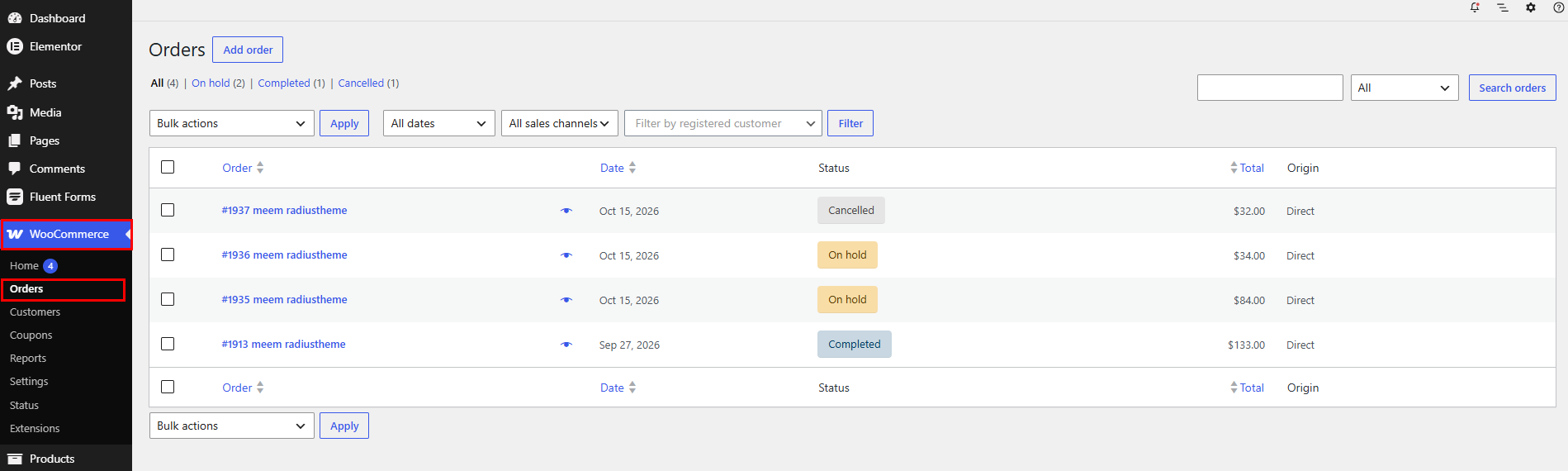
In your WordPress dashboard, go to WooCommerce > Orders. Click the order number or customer name to open the single order page.
Step 2: Find the Order notes panel
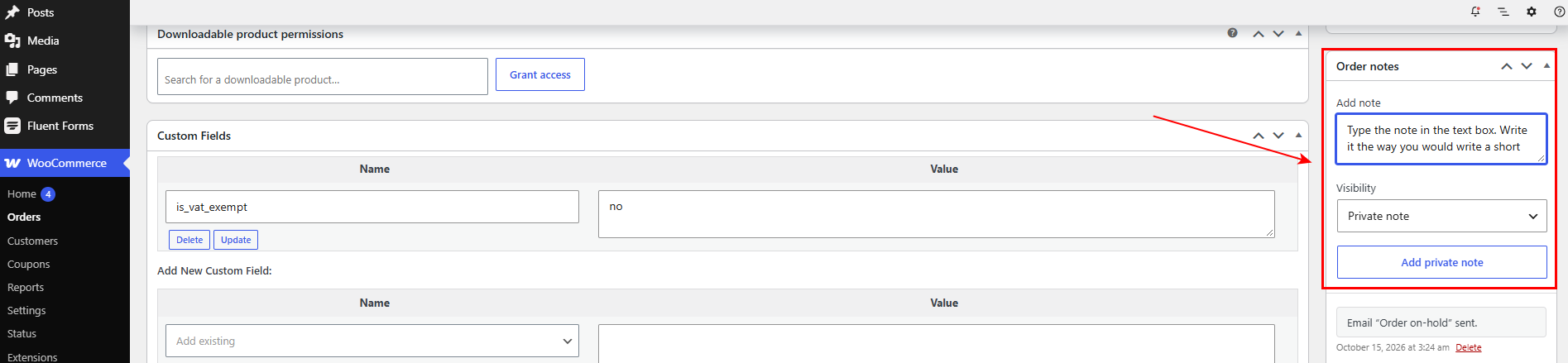
Look at the right side of the screen, below Order actions. You will see a list of past notes and a text box at the bottom.
Step 3: Write your message
Type the note in the text box. Write it the way you would write a short, friendly email. The customer reads this exact text.
Notes support links and some basic formatting. So you can paste a full tracking link, and it will be clickable.
Step 4: Set Visibility to “Public note to customer”

Under Visibility, pick Public note to customer. If you leave it on Private note, only your team will see it.
Step 5: Preview (optional) and send
Click Preview or edit email template if you want to check how the email looks. Then click Send note to customer.
The note appears in the panel with a Sent to customer label. WooCommerce sends the email at once.
Before you click send: 3 things to know
- You cannot edit a note after you add it. WooCommerce lets you delete order notes, but not change them.Read it twice before sending.
- Deleting a customer note does not unsend the email. It only removes the note from the order. If you sent a mistake, send a new note with the fix.
- Each note is a new email. Five quick notes means five emails. Put everything in one clear message.
What does the customer see?
A customer note reaches the buyer in two places: their inbox and their account page.
1. The Customer note email. WooCommerce sends this email when you add a note to the customer. It uses your store’s email design, and it shows your message plus a short summary of the order.
2. The My account page. Logged-in customers can open My account > Orders, click the order, and read every customer note you sent. Private and system notes never show here.
The guest checkout catch
If someone checked out as a guest, they have no account page. The email is the only place they will see your note. So if a guest says they never got your update, check email delivery first (see the troubleshooting section below).
Customize the Customer note email
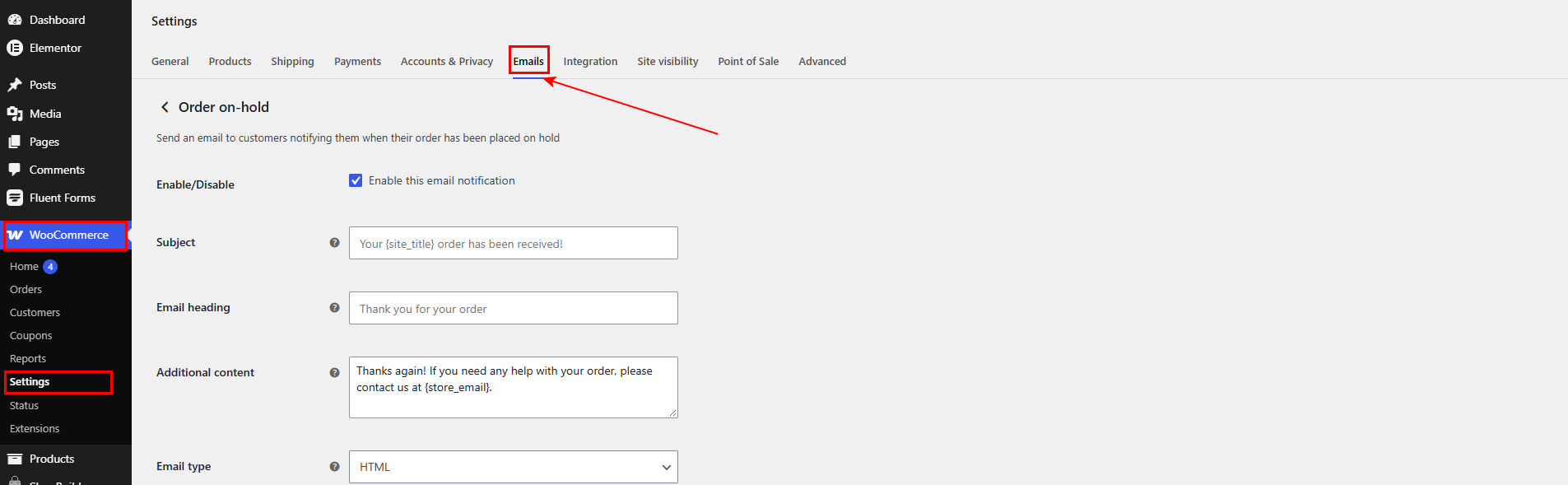
Go to WooCommerce > Settings > Emails and open Customer note. Here you can:
- Turn the email on or off
- Change the subject line and heading
- Add extra text below your note
A tip from experience: change the default subject to something clear, like “An update on your {site_title} order”. Generic subjects get skipped or filtered as spam.
If you want full control of the layout, copy templates/emails/customer-note.php from the WooCommerce plugin into yourtheme/woocommerce/emails/ and edit the copy.
Notes from customers at checkout
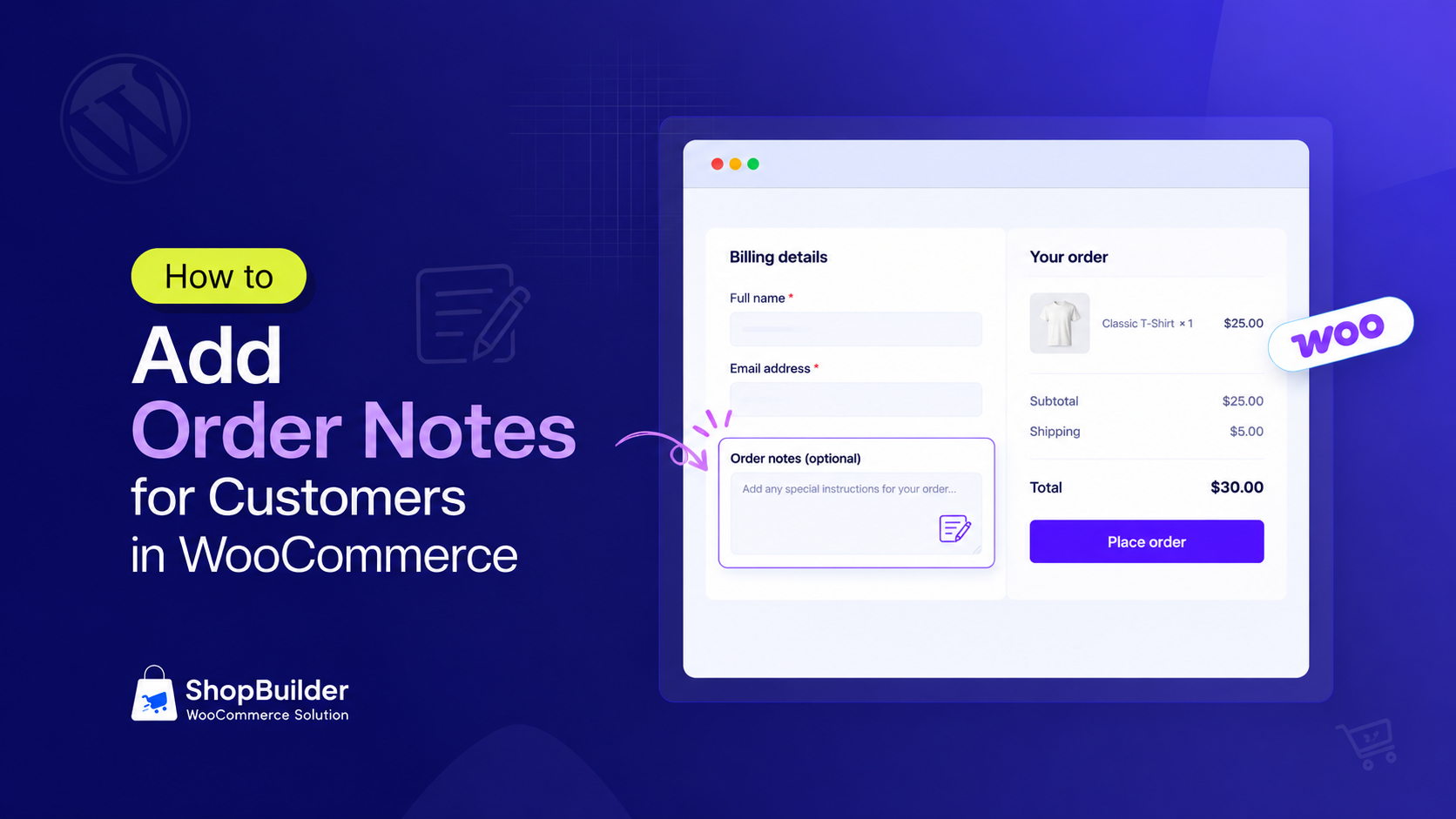
Communication goes both ways. WooCommerce also lets shoppers leave a note when they buy, like “Leave the box at the back door” or “Please gift wrap.”
Where the shopper writes it
- Checkout block (default for new stores since WooCommerce 8.3): the shopper ticks Add a note to your order, and a text box opens.
- Classic checkout (shortcode): an Order notes box sits under Additional information.
Where you read it
Open the order and look under the Shipping address. You will see Customer provided note. To change it, click the pencil icon next to Shipping, edit the text, and click Update.
Why edit it? Say a buyer sends a gift to a friend and writes a private message in the note. If your packing slip prints that note, the friend reads it too. Edit or clear it before you print.
Reply to a checkout note
The best customer experience is a quick reply. Read the customer provided note, then add a Public note to customer like: “Thanks, Maria. We’ll include a gift card with your message and leave out the receipt.” Now the buyer knows a real person read their request.
Turn the checkout notes field on or off
- Checkout block: go to Appearance > Editor > Templates > Page: Checkout (or edit the Checkout page). Select the Checkout block and use the order notes setting in the block sidebar to show or hide the field.
- Classic checkout: add this one line to a code snippets plugin to hide it:
add_filter( 'woocommerce_enable_order_notes_field', '__return_false' );Hide the field only if you sell digital products with nothing to ship. For physical goods, the field prevents many “wrong door” and “I wasn’t home” problems.
Do you need a plugin for order notes?
For most stores, no. WooCommerce already lets you send customer notes, keep private notes, and collect checkout notes. Add a plugin only when you hit one of these limits.
| What you need | Built into WooCommerce? | Option to look at |
| Send a note to one customer | Yes | Order notes panel |
| Add the same note to many orders at once | No | A bulk order editor, such as OBULKiT |
| Print checkout notes on invoices and packing slips | No (no invoices in core) | A PDF invoice plugin, such as Challan |
| Let shoppers add a note per product, not per order | No | WPC Cart Item Note |
| A dedicated delivery instructions box | No (one general notes box) | A delivery instructions plugin that supports the Checkout block |
| Design, rename, move, or remove the checkout notes field with no code | Partly (code or block settings) | ShopBuilder (Order Notes widget + Checkout Fields Editor module) |
| Post notes from other apps with no code | Partly (REST API) | Zapier or Make, using the “Create Order Note” action |
Customize the checkout notes field with ShopBuilder
If you build your store pages with Elementor, ShopBuilder gives you more control over the notes box your customers see. Its free version includes an Order Notes checkout widget and a Checkout Fields Editor module.
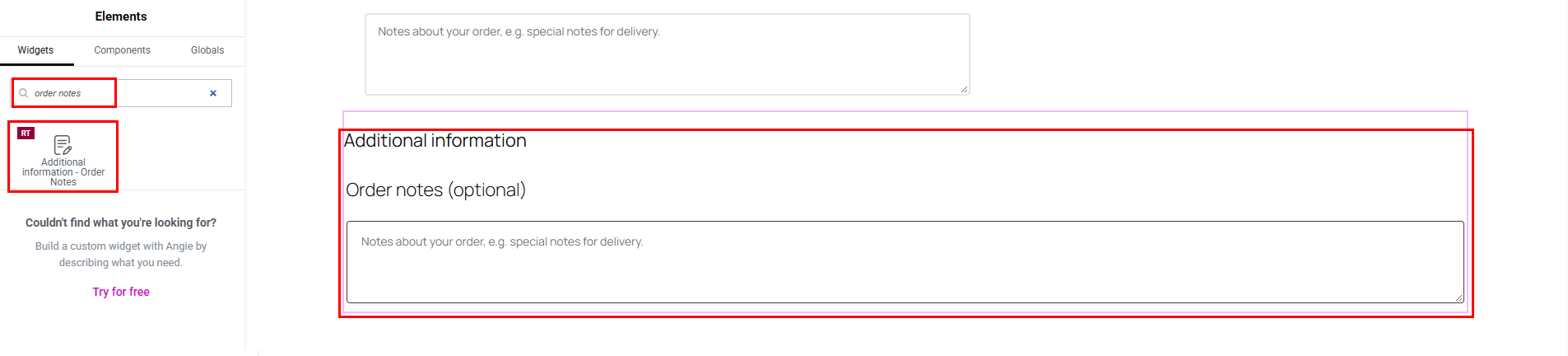
Order Notes widget: drag the notes box anywhere on your checkout page and style its label and field to match your brand.
Good Read: How to Add Custom Fields to the WooCommerce Checkout Page
Checkout Fields Editor: add, edit, remove, or reorder checkout fields, so you can rename “Order notes” to something clearer like “Delivery instructions.”
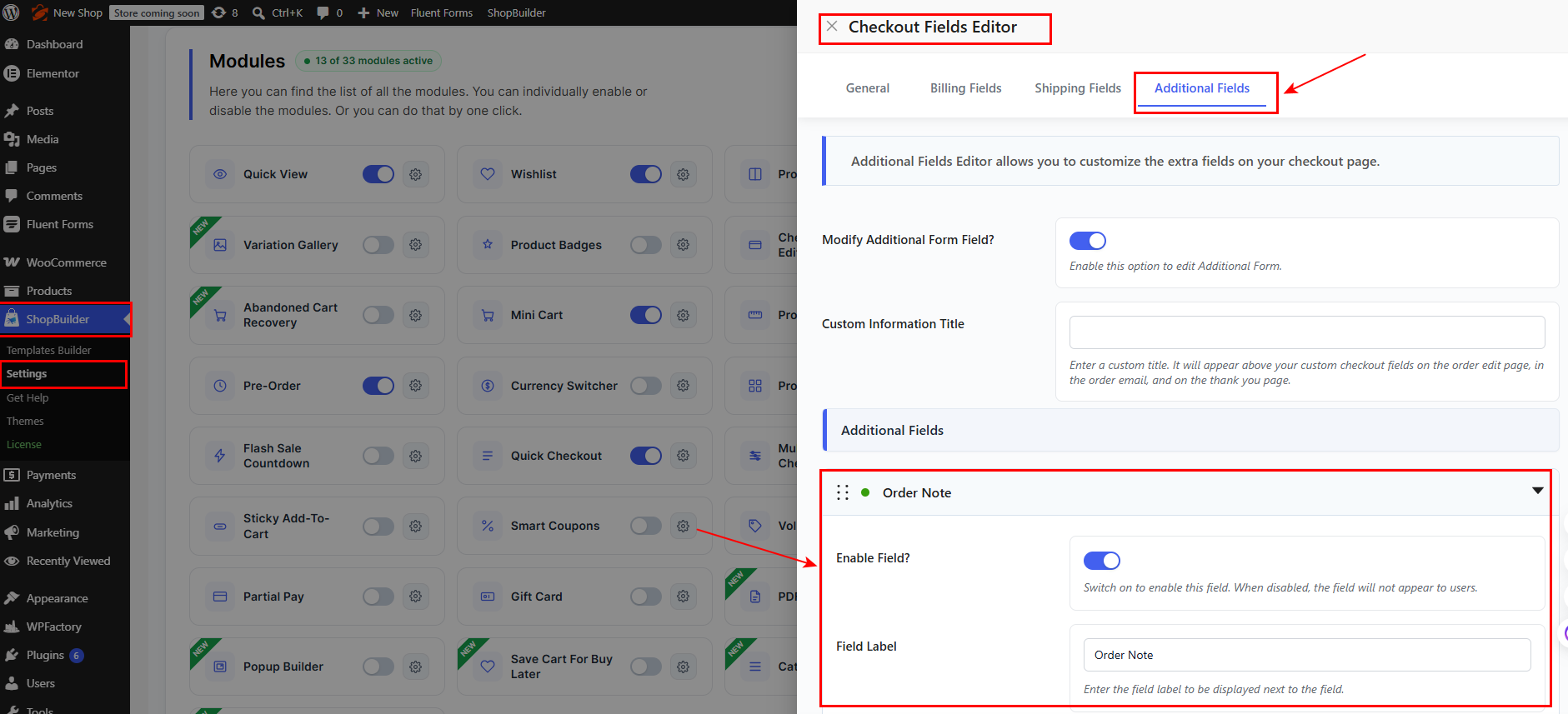
To turn it on: go to ShopBuilder > Settings > Modules, open Checkout Fields Editor, and switch on Enable Checkout Fields Editor?
ShopBuilder changes how shoppers leave notes. You still send notes to customers from the Order notes panel, as shown above.
Before you install anything, check that the plugin says it works with the Checkout block. Many older checkout plugins only work with the classic checkout, and their fields simply will not appear on block checkout pages.
Troubleshooting: customer notes not sending
The most common complaint on the WordPress.org forums goes like this: the note shows in My account, but the customer never got an email. Work through these checks in order.
- Check the note type. Open the order. Does the note have the Sent to customer label? If not, it was saved as private. Add it again as a public note.
- Check the email is turned on. Go to WooCommerce > Settings > Emails > Customer note and make sure Enable this email notification is ticked.
- Check the customer’s email address. Look at the billing email on the order. One typo means the note goes nowhere.
- Ask the customer to check spam. Notes look like plain text emails, so filters sometimes catch them.
- Send a test order to yourself. Use a Gmail and an Outlook address. If neither arrives, the problem is your server, not the note.
Best practices for customer order notes
A good note answers the question before the customer asks it. Follow these rules and you will get fewer “where is my order?” emails.
- Lead with the news. “Your order shipped today” comes first. Greetings come second.
- Give the next step. Tell them what happens now and when.
- Include links, not just numbers. A clickable tracking link saves the buyer a step.
- Write one note, not three. Every customer note is a separate email.
- Never share private data. No card details, no staff names you don’t want public, no internal comments. If in doubt, make it private.
- Log the reason for every change. When you change an order, add a private note saying why. Six months later, you will be glad you did.
- Be human about delays. Say sorry once, give a new date, and offer a choice if you can.
Frequently asked questions
What is the difference between a private note and a customer note in WooCommerce?
A private note is for your team only. The customer never sees it. A customer note is emailed to the buyer and shown in their My account order details.
Does WooCommerce email the customer when I add a note?
Yes, but only for customer notes (Public note to customer). WooCommerce sends the Customer note email right away. Private and system notes do not send a note email.
Can I edit an order note in WooCommerce?
No. You can delete an order note, but you cannot edit it. The one exception is the customer provided note from checkout, which you can edit from the Shipping section of the order.
If I delete a customer note, does the customer still have the email?
Yes. Deleting the note only removes it from the order. The email has already been sent.
Where do customers see order notes?
In their inbox, and on My account > Orders when they view the order. Guest customers only get the email.
Where is the customer’s checkout note in the admin?
Open the order and look under the Shipping address for Customer provided note.
Can I add a note to several orders at once?
Not with core WooCommerce. You need a bulk order editing plugin, or a short script that loops through order IDs and calls add_order_note().
Start using customer notes today
Customer order notes are the simplest way to keep buyers informed without leaving WooCommerce. Open an order, choose Public note to customer, and send. The buyer gets an email, and your team gets a clear record.