Every extra click costs you money. Shoppers open a product page, read for six seconds, hit the back button, and lose their place in your shop grid. Do that three times and they leave. That is one reason the average cart abandonment rate still sits at 70.22% across 50 studies (Baymard Institute).
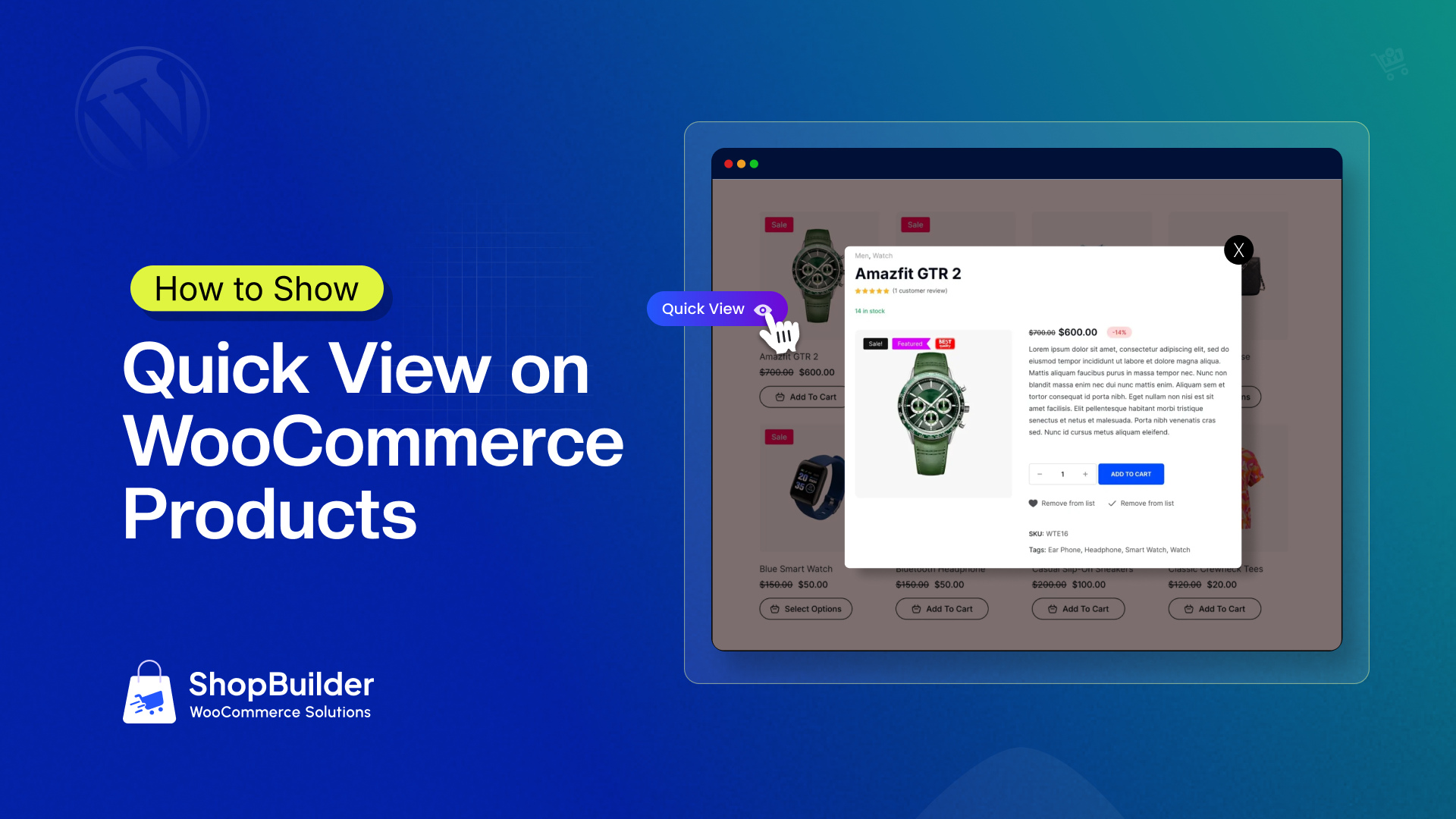
A WooCommerce quick view fixes a big part of that friction. It lets a shopper preview a product in a popup, pick a size, and add to cart without ever leaving the shop page.
This guide shows you how to show quick view on WooCommerce products in two ways.
What Is Quick View in WooCommerce?
Quick view is a WooCommerce feature that opens a small popup with key product details when a shopper clicks a button on the shop or category page. The popup usually shows the image gallery, title, price, rating, short description, variation options, and an add to cart button. The shopper never leaves the page they were browsing.
Think of it like a preview window. The shop grid stays behind the popup. Close the popup and the shopper is right back where they were, at the same scroll position.
Quick view vs product page
| Quick View Popup | Full Product Page | |
| Loads | On the same page, by AJAX | New page load |
| Shows | Core buying details only | Full details, tabs, reviews, related items |
| Best for | Fast browsing and comparing | Deep research and SEO |
| Shopper keeps | Scroll position and filters | Nothing, they must go back |
| URL change | No | Yes |
Quick view does not replace your product page. It sits in front of it. The full page still handles SEO, reviews, and long content.
Good Read: WooCommerce Related Products: Increase Revenue by 35%
Why Quick View Is Worth Adding
Here is what quick view actually does for a store.
It removes clicks. A shopper on a shop page normally clicks in, reads, and clicks back. Quick view turns three actions into one.
It protects filters and scroll position. This is the hidden win. Many themes reset filters when a shopper hits back. That makes people restart their search. Quick view keeps them in place.
It helps compare products fast. Shoppers can open, close, and open another product in seconds.
It speeds up simple buys. For low-cost, low-risk products like mugs, t-shirts, or phone cases, most shoppers do not need a full page. They need a photo, a price, and a size.
It boosts mobile browsing. Mobile shoppers scroll long grids. Every full page load costs them time and data.
It supports faster funnel movement. Deloitte’s data shows small friction cuts create real gains in add to cart rates. Quick view removes a whole page load from the path.
When quick view is a bad idea
Most articles never say this part. Quick view is not for every store.
Skip it or limit it if:
- You sell complex, high-price items. Cameras, machinery, and software need long specs, comparison tables, and trust content. A tiny popup will not close that sale.
- Your product pages carry heavy content. If your page has size charts, videos, FAQs, and 30 reviews, sending people to the page is better.
- Your buyers need reassurance. Warranty, shipping time, and return policy often live on the product page. A popup that hides those raises questions.
Good rule: use quick view when the buying decision is simple. Use the full page when the decision is complex.
2 Ways to Show Quick View on WooCommerce Products
| Method | Skill Needed | Time | Control | Best For |
| ShopBuilder Quick View module | Beginner | 5 to 10 min | High (drag and drop popup layout) | Most stores |
| Custom code | Developer | 1 to 3 hours | Full | Devs with special needs |
Pick one. Do not run two quick view tools at the same time. That is the number one cause of double buttons and broken popups.
Method 1: Show Quick View With the ShopBuilder Module (No Code)
ShopBuilder is a WooCommerce builder plugin with a built in Quick View module. It is the fastest path for most store owners because the button, the popup, and the popup layout all come from one plugin. No extra add-ons.
Step 1: Install and activate ShopBuilder
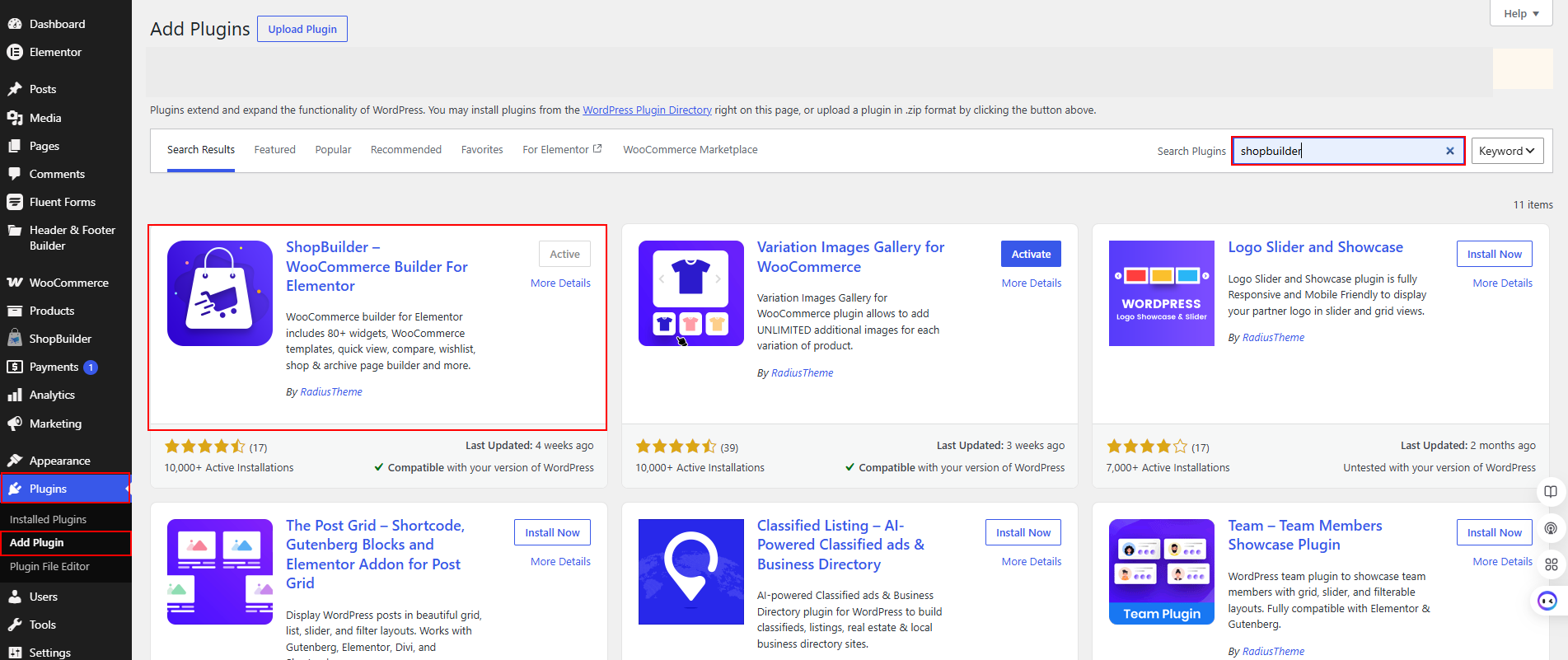
Go to Plugins → Add New, search for ShopBuilder, then install and activate it.
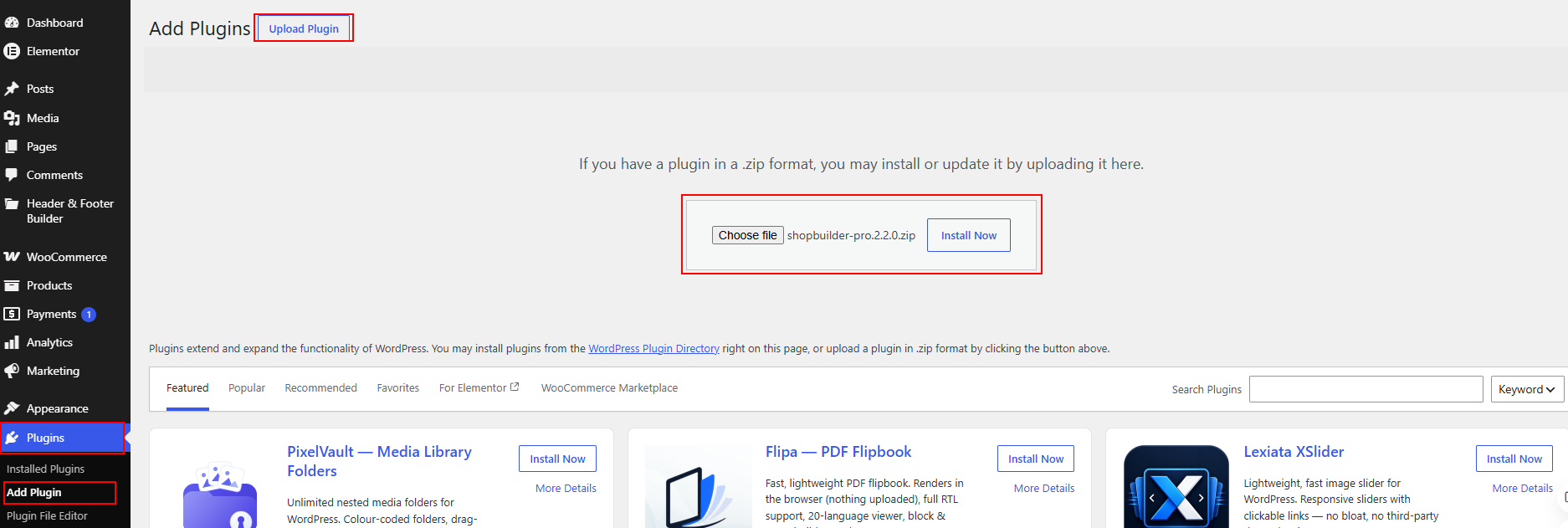
If you have the Pro version, upload the zip and add your license key.
Step 2: Turn on the Quick View module
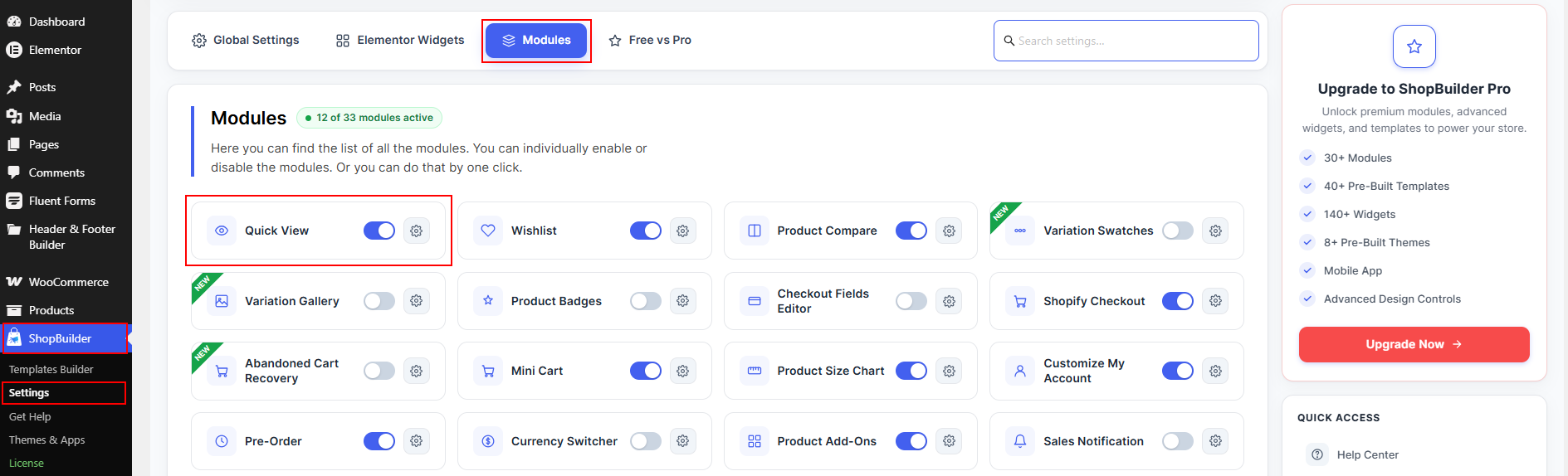
Open ShopBuilder → Modules in your WordPress dashboard. Find Quick View and click the toggle to enable it. Then open its settings.
The module has two sections: General and Style.
Step 3: Set the General options
Open the General tab. Toggle Enable Quick View on. Then pick a Shop Page Button Position. You can choose Before Add to Cart, After Add to Cart, Top on The Image, Use Shortcode, or Custom Position. “Top on The Image” suits most modern grids, since the icon appears on hover and keeps the card clean.
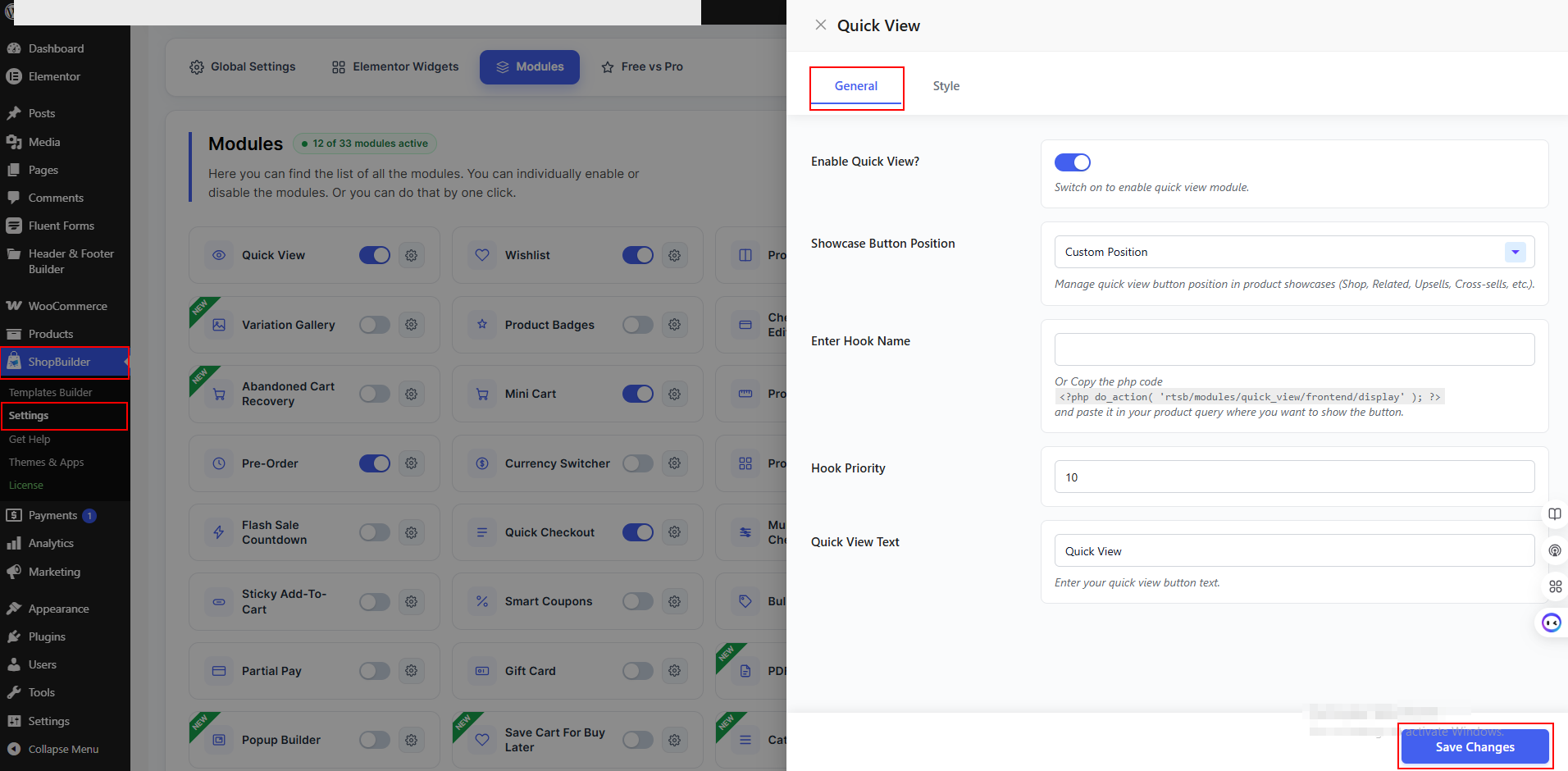
If you pick Custom Position, fill in the Enter Hook Name field with a WooCommerce hook such as woocommerce_after_shop_loop_item. You can also place the button by hand. Paste this line into your product loop template at the exact spot you want it:
Next, adjust the Loop Hook Priority. A lower number moves the button earlier on the card. Use it if the button lands in the wrong place. Last, set the Quick View Text. This is the tooltip on the icon, so keep it simple, like “Quick View.” Click Save Changes when you are done.
Step 4: Style the popup
Open the Style tab to control how the modal looks. Start with Modal Width. 950px works well for a two column popup. Then set the Modal Height. 450px is a safe start. The rule here matters more than the number: the add to cart button must be visible without scrolling inside the popup.
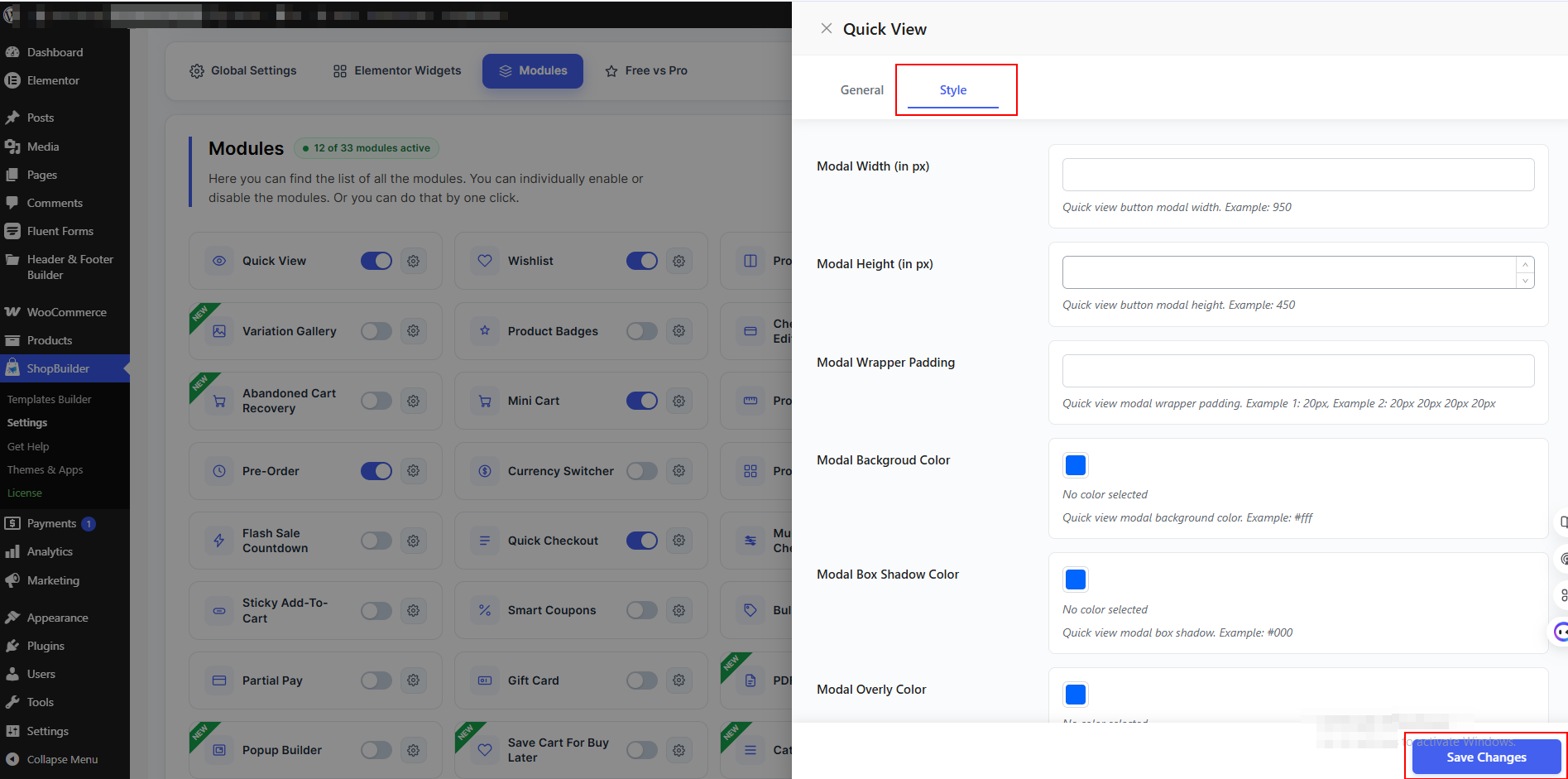
Use Modal Wrapper Padding to add space around the content, so the details do not touch the edges. Set the Modal Background Color, which is usually white. Add a soft Modal Box Shadow Color to lift the popup off the page. Finally, choose a Modal Overlay Color. Dark and semi transparent, around 60% opacity, keeps the focus on the product behind the popup. Click Save Changes.
Step 5: Build the popup layout (Pro)
With ShopBuilder Pro you can design the popup in Elementor. Dedicated Quick View widgets include images, title, price, rating, short description, add to cart, stock, SKU, size chart, social share, wishlist, compare, and quick checkout.
You can also start from a ready made Quick View template and edit it.
Keep it light. Most stores do not need every widget.
Step 6: Test it on the front end
Clear your cache. Open the shop page in a private tab, click the quick view icon, and check that the popup loads with an add to cart button.
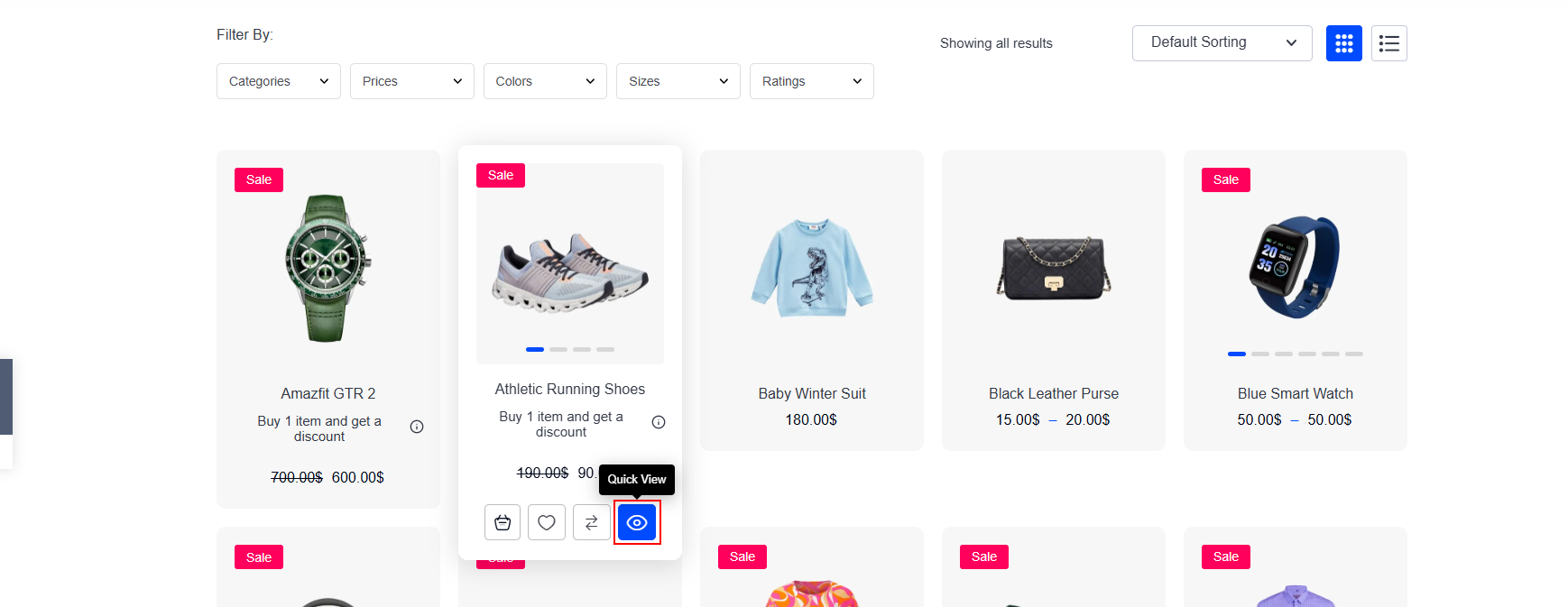
Test five cases:
- A simple product
- A variable product (switch size or color)
- An out of stock product
- A product on sale
- The popup on a real phone
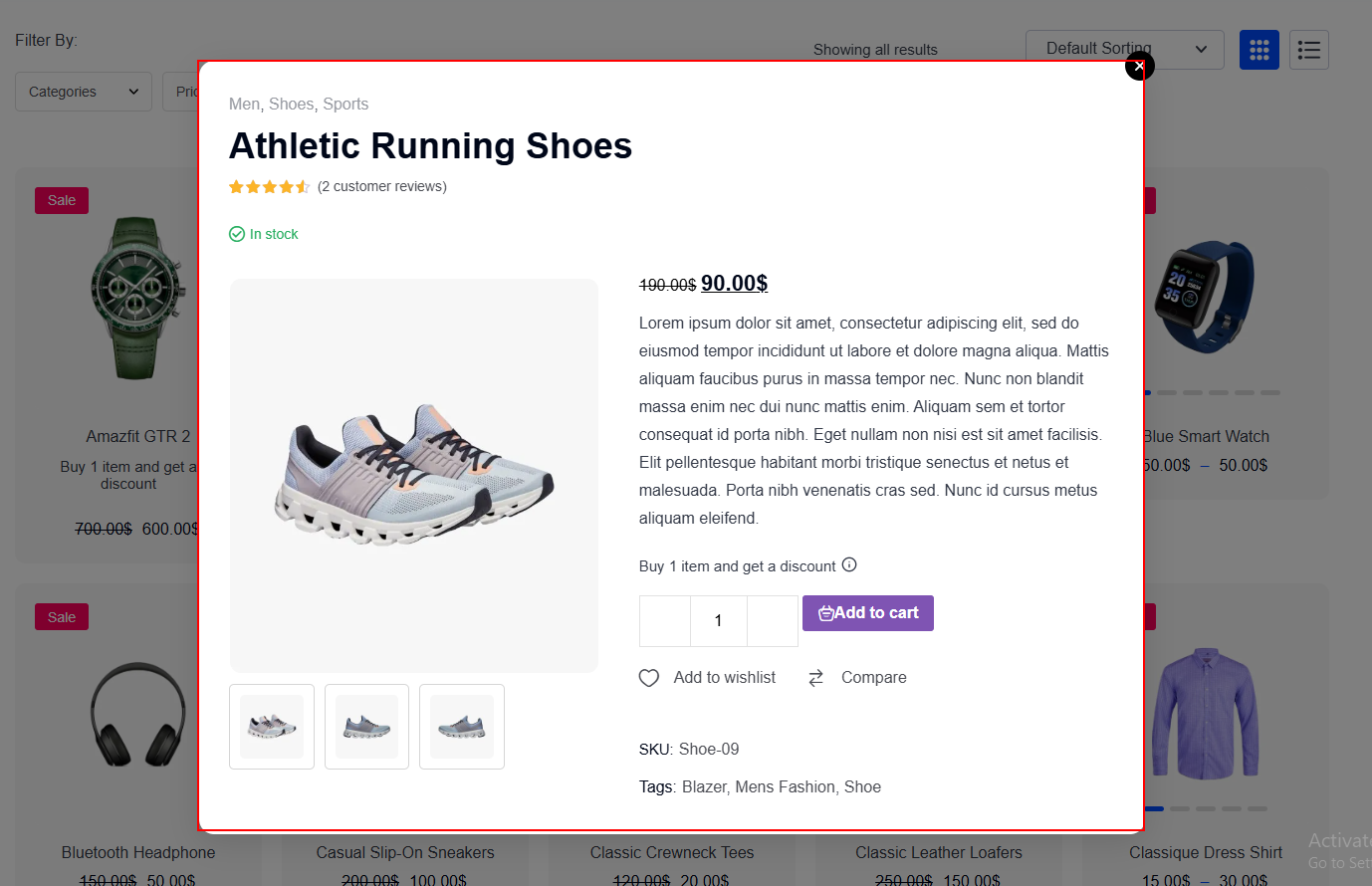
A stale cache is the top reason a new button “does not show up.”
Good Read: Creating Product Image Galleries That Boost Sales
Method 2: Add Quick View With Custom Code
Only pick this if you are comfortable with PHP, JavaScript, and WooCommerce hooks. Use a child theme or a code snippets plugin. Never edit plugin files directly.
The basic flow has three parts.
1. Add the button to the product card.
php
add_action( ‘woocommerce_after_shop_loop_item’, ‘my_quick_view_button’, 15 );
function my_quick_view_button() {
global $product;
echo ‘<button class=”my-quick-view” data-id=”‘ . esc_attr( $product->get_id() ) . ‘”>Quick View</button>’;
}
2. Return the product HTML through AJAX.
php
add_action( ‘wp_ajax_my_quick_view’, ‘my_quick_view_content’ );
add_action( ‘wp_ajax_nopriv_my_quick_view’, ‘my_quick_view_content’ );
function my_quick_view_content() {
$id = absint( $_POST[‘product_id’] );
$post = get_post( $id );
if ( ! $post || ‘product’ !== $post->post_type ) {
wp_send_json_error();
}
// Set up the global product data, then load the parts you want.
// Keep it light: image, title, price, short description, add to cart.
wp_send_json_success( $html );
}
3. Open the popup with JavaScript. Listen for the button click, call the AJAX endpoint, inject the HTML into a modal, and trap keyboard focus inside it.
Things people forget in custom builds:
- Variation forms need the WooCommerce wc-add-to-cart-variation script loaded on the shop page.
- The add to cart button in the popup must trigger the AJAX cart, or the page will reload.
- Nonces protect your AJAX endpoint. Use them.
- Escape all output.
If this list feels heavy, use a module. The maintenance cost of custom code is real, and it grows with every WooCommerce update.
Common Problems and Fixes of Quick View
- Button does not show up. Clear your site and CDN cache. Then check the button position setting.
- Button still missing on a page builder shop layout. That layout skips default WooCommerce hooks. Use the shortcode, or add the do_action( ‘rtsb/modules/quick_view/frontend/display’ ); snippet inside your product loop.
- Two quick view buttons appear. Your theme already has quick view. Turn one off under Theme Options → Shop.
- Popup opens blank or keeps spinning. A JavaScript error. Check the browser console. Exclude the quick view script from JS delay and defer in your cache plugin.
- Variable products do not work. The variation script is missing. Enqueue wc-add-to-cart-variation on shop and archive pages.
- Add to cart reloads the page. Turn on WooCommerce → Settings → Products → Enable AJAX add to cart buttons on archives.
- Popup sits behind the header. A z-index conflict. Raise the modal z-index above your sticky header value.
- Popup is cut off on mobile. Modal height is fixed in pixels. Switch to a full screen popup on small screens.
Mobile Rules for Quick View
Most stores get more than half their traffic from phones. Quick view on mobile needs different thinking.
- Make the popup full screen on small screens. A tiny centered box is hard to use.
- Keep the close button big and in a fixed corner. Aim for 44px by 44px minimum.
- Put add to cart above the fold inside the popup.
- Use swatches, not dropdowns. Dropdowns on mobile open a native picker and feel slow.
- Never trigger quick view on hover. There is no hover on touch. Use a visible tap target.
- Ask if you need it at all on mobile. On some mobile layouts, the product page loads just as fast as the popup. Test both. Some stores turn quick view off below 768px and gain speed.
Track Whether Quick View Actually Works
Adding quick view is easy. Proving it made money is the part stores skip.
Track these four numbers for 30 days before and after:
- Add to cart rate from the shop and category pages
- Product page views per session (this should drop, and that is fine)
- Shop page bounce rate
- Revenue per session
In GA4, fire a view_item event when the popup opens and an add_to_cart event when the popup add to cart is clicked. If you skip this, quick view add to carts may go untracked and your reports will look worse than reality.
If add to cart rate rises but conversion falls, your popup is missing trust content. Add stock status, shipping info, or reviews.
Frequently Asked Questions (FAQ)
What is quick view in WooCommerce?
Quick view is a popup that shows a product’s images, price, options, and add to cart button on the shop page. Shoppers can buy without opening the full product page.
Does WooCommerce have quick view by default?
No. WooCommerce core does not include a quick view feature. You need a plugin, a module like ShopBuilder’s Quick View, a theme that includes it, or custom code.
How do I add quick view to WooCommerce without coding?
Install a plugin with a quick view module, enable it in the dashboard, choose the button position, style the popup, and save. With ShopBuilder this takes about five minutes.
Where should the quick view button go?
“Top on The Image” works well for modern grids. “After Add to Cart” is safer if your theme has a tight card layout. Test both on mobile.
Does quick view slow down my WooCommerce store?
It can, if the plugin loads all product data on page load. A well built module loads the popup by AJAX, only when the shopper clicks. Always check PageSpeed Insights before and after.
Next Step
Quick view is one of the cheapest wins in a WooCommerce store. It costs a few minutes to set up and removes a full page load from the buying path.
Start with one thing this week. Turn on quick view for your best selling category. Track add to cart rate for 30 days. Then decide whether to roll it out store wide.