Single product pages are sales pages for WooCommerce stores. Thus, WooCommerce site owners must carefully build these pages if they want to turn prospects into actual paying customers.
Unfortunately, many store owners don’t know how to create single product page in WooCommerce. If you have a store, it’ll be wise to learn to build professional single product pages.
That said, this guide will briefly discuss what a WooCommerce single page is and two excellent methods to create single product pages with minimal effort. Thus, let’s read.
What is a WooCommerce Single Product Page?
When you install the WooCommerce plugin on your store, this plugin automatically creates several web pages on your WordPress site. Among these pages, the Shop page is a crucial one since it displays all your products.
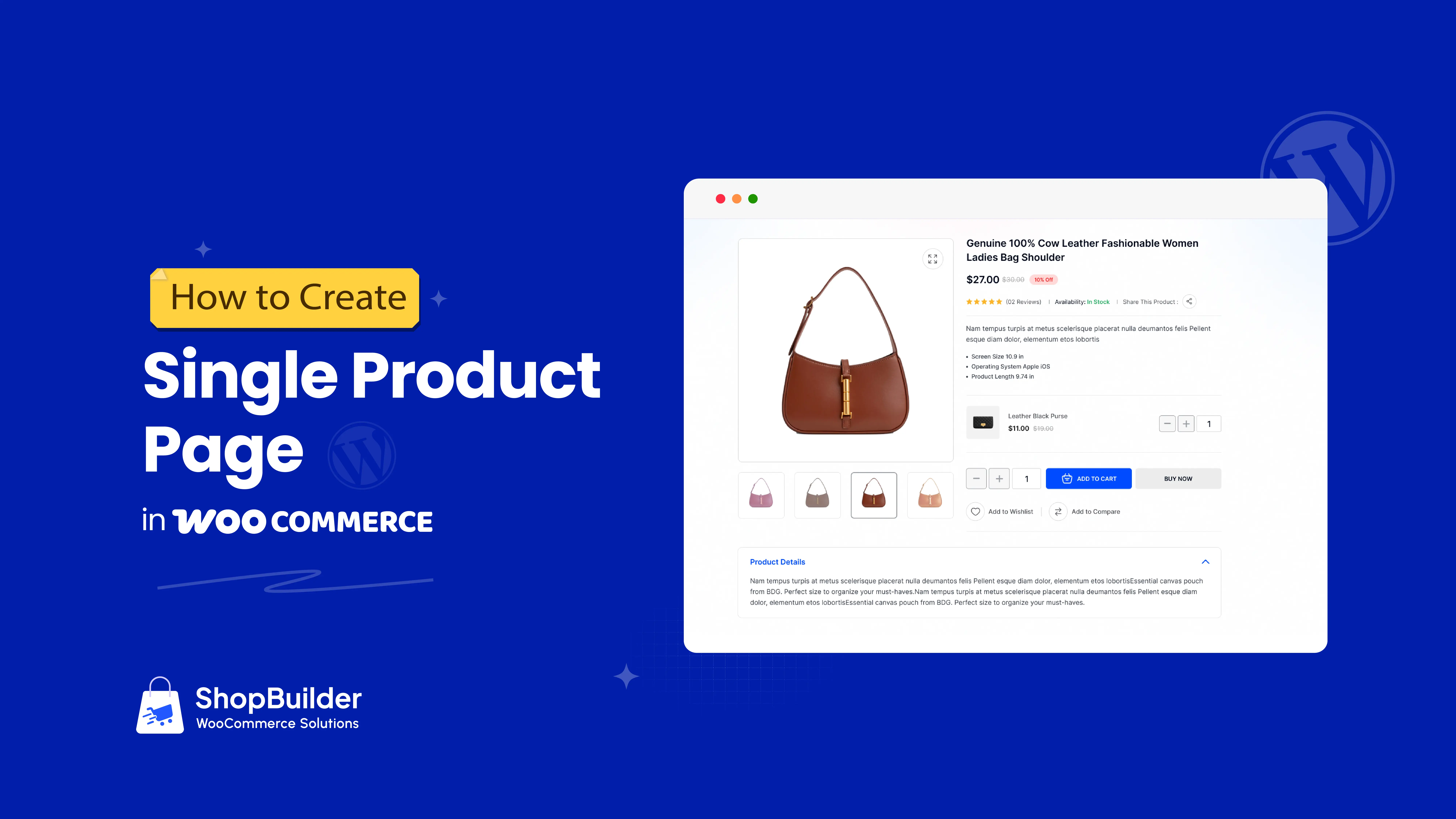
Now picture this: you visit the shop page and explore many products of a website. You like one item and click on it to see its details. You then visit another page featuring details about the product, including images, videos, pricing, reviews, and other information.
That page is a single product page. Different WooCommerce stores feature diverse single product layouts (page design). This layout largely depends on the store’s theme. That means how you design the single product page depends on what theme you use.
Okay, you now understand what a WooCommerce single page is. Let’s now discuss how to create one.
👉 Good Read: How to Add File Upload Field on WooCommerce Product Page
How to Create Single Product Page in WooCommerce
We’ll show you two different methods to help you professionally craft a single product page in your Woocommerce store. Let’s begin.
Build a Single Product Page Using a Default Block Theme (Method 1)
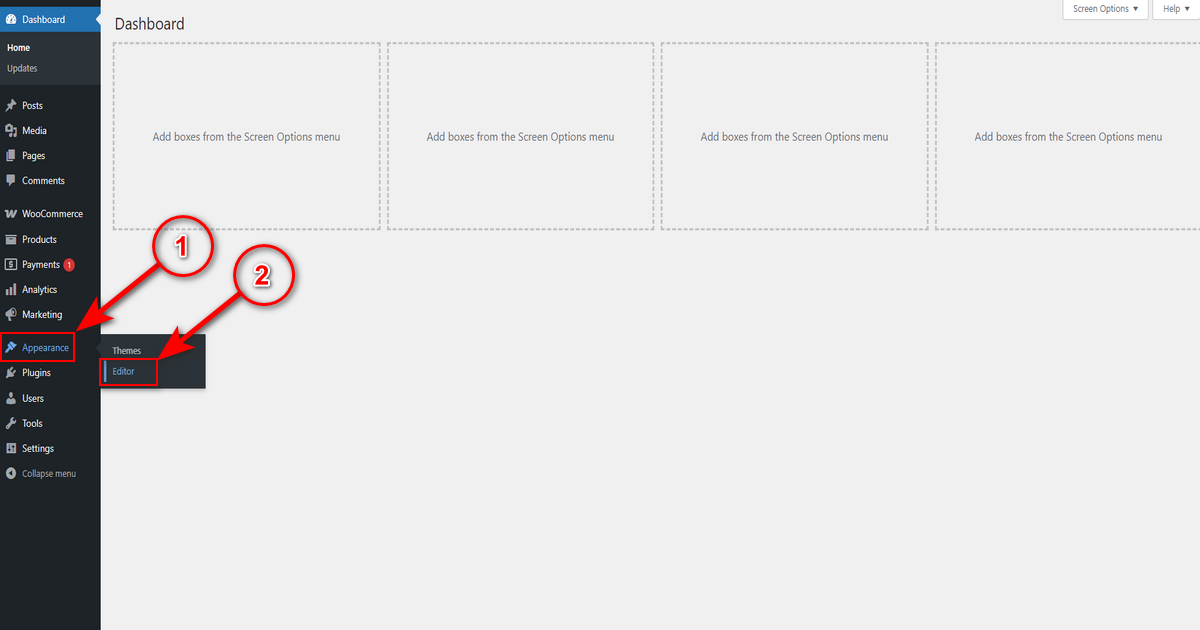
For your information, we’ll demonstrate this section using the “Twenty Twenty-Five” theme. So, we head to WP Admin Panel > Appearance > Editor.
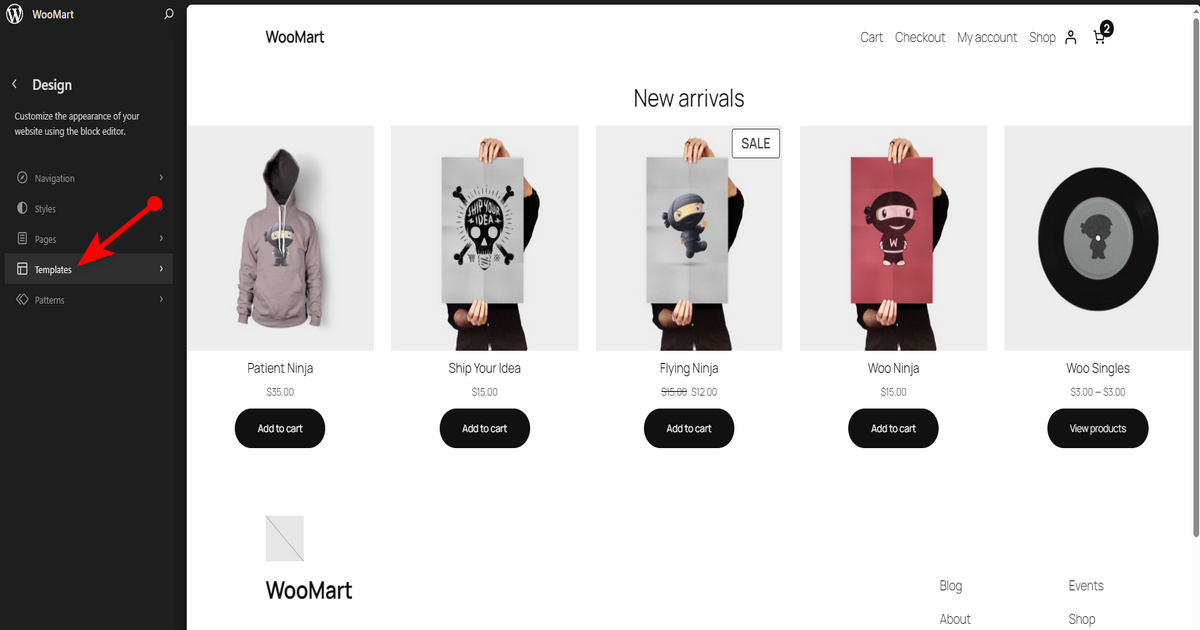
You’ll then enter the editor of the block theme and can design pages from the front end. Thus, click ‘Templates’ on the left-side panel.
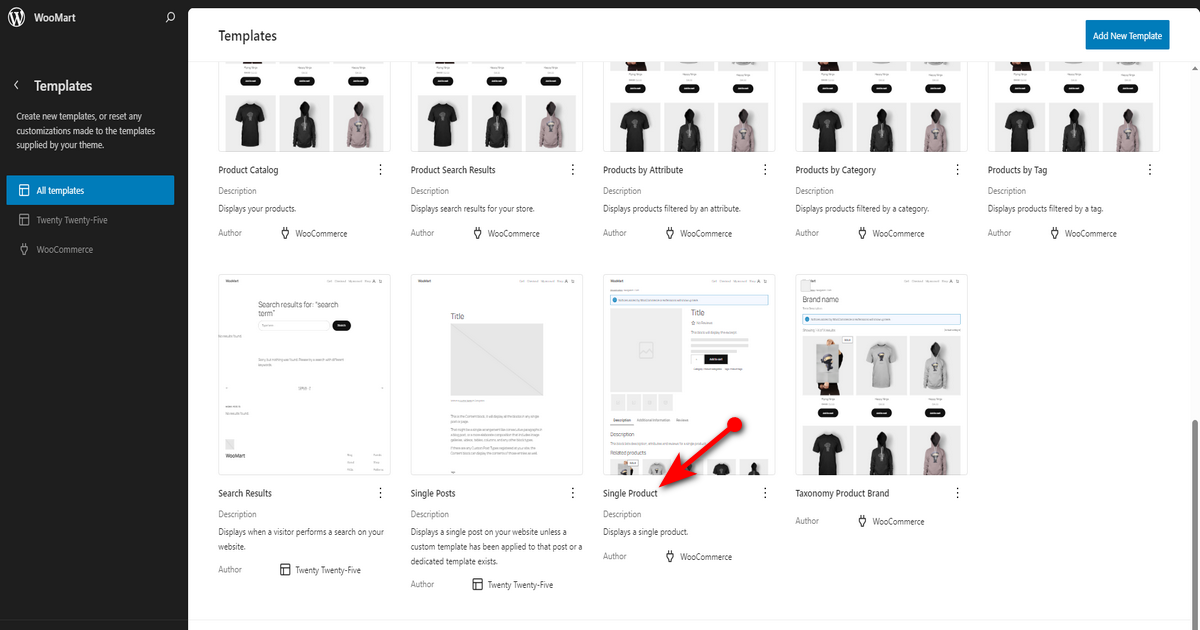
Here, you’ll see templates for all pages on your store. Find the “Single Product” template by WooCommerce and click on it.
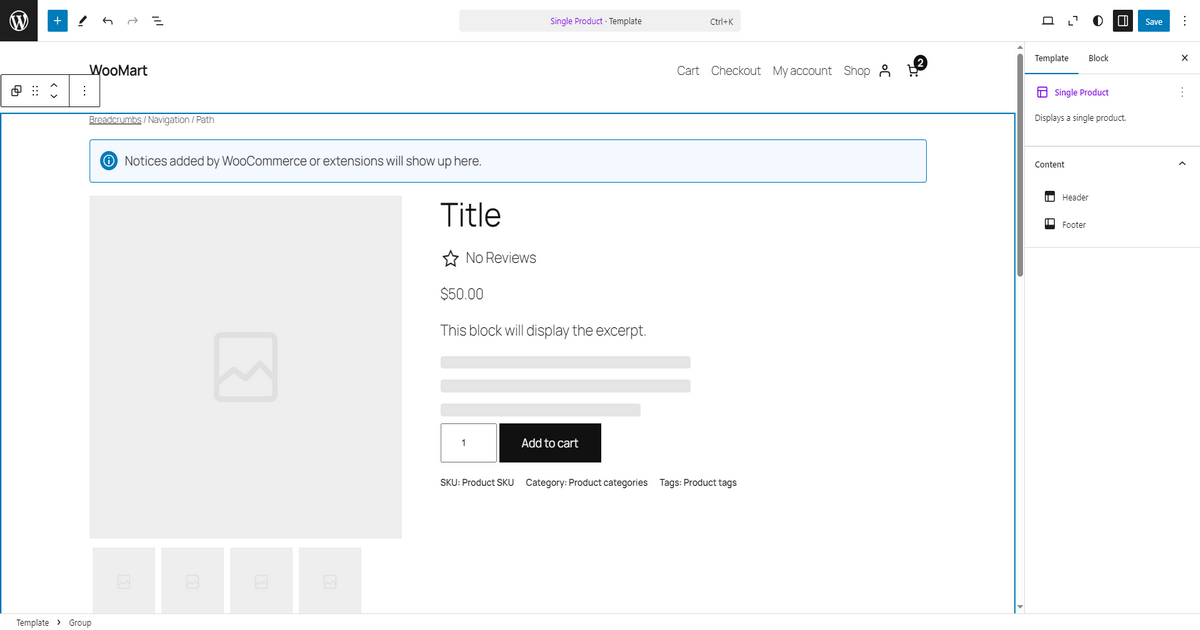
You’ll then visit the “Gutenberg (block) Editor” to design the single product page according to your preferences.
Customize the Single Product Page with Block Editor
Let’s make some changes to the single product page with Block Editor. We’ll move the product image gallery from left to right. To do so, we’ll select the block containing the product image gallery.
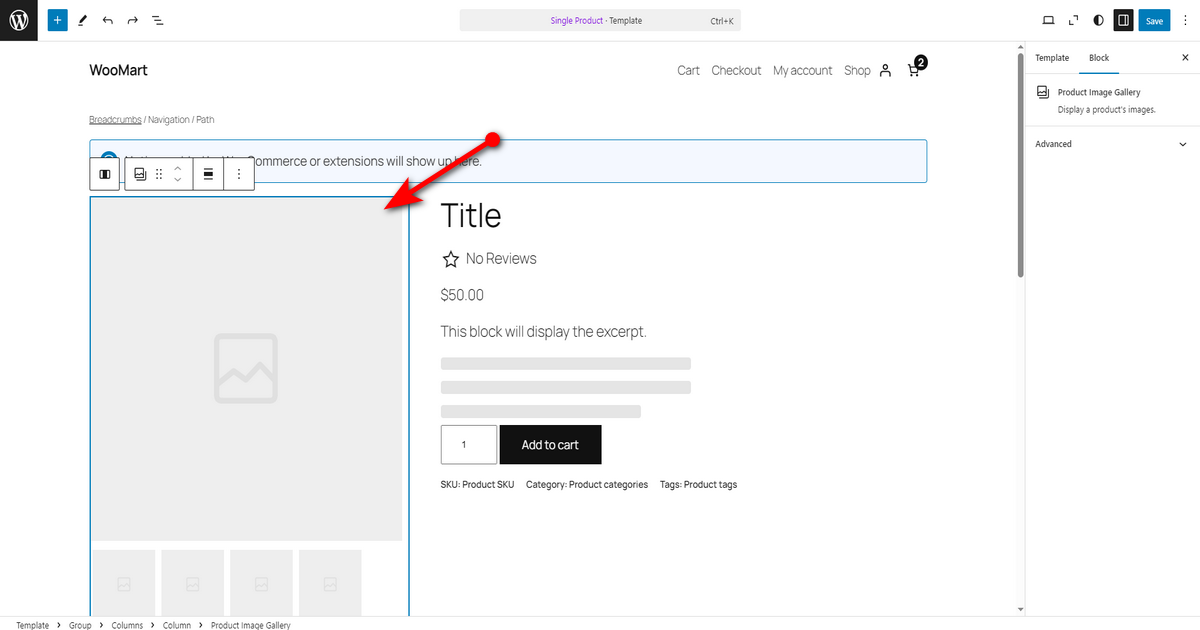
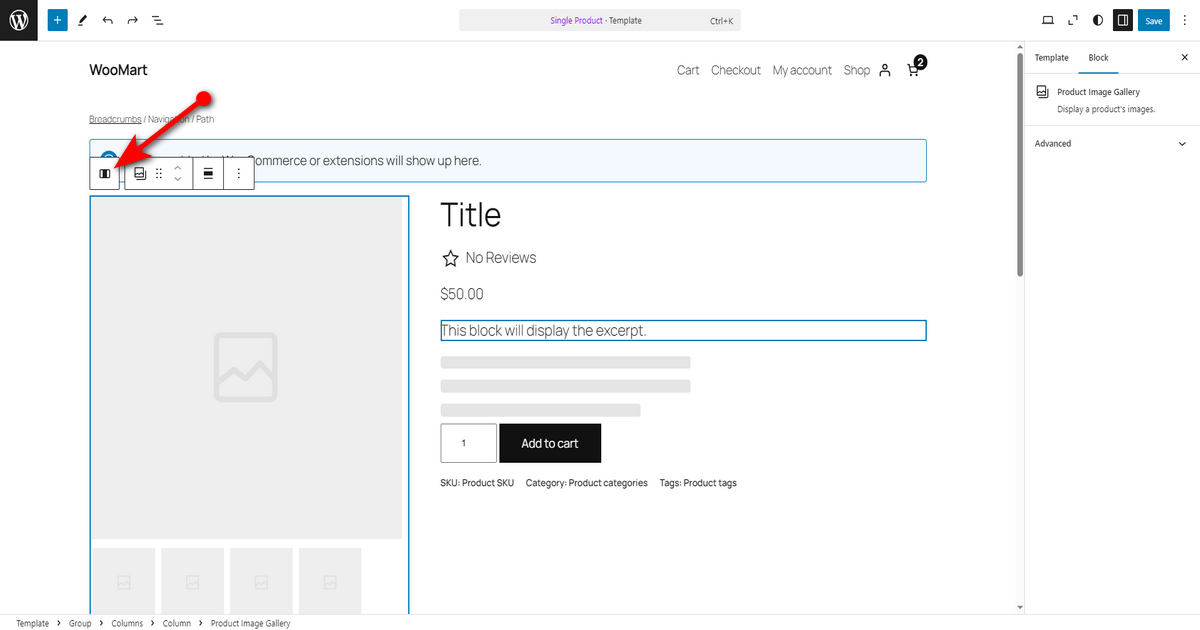
Afterward, click the “parent block: Column” from the horizontal menu.
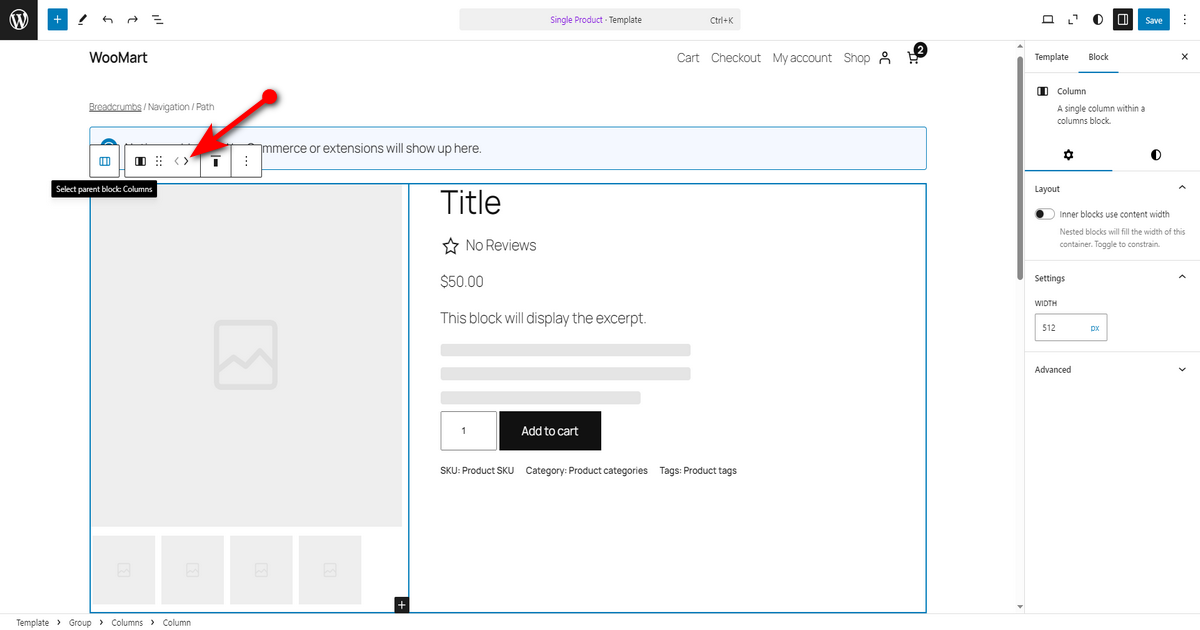
You’ll now see arrows in that horizontal menu. Utilize them to move the “parent block: Column” on the right and left sides.
We encourage you to explore other functionalities of Gutenberg Editor and design the single product page. Once you are happy with the design, click ‘Save’ button on the top right.
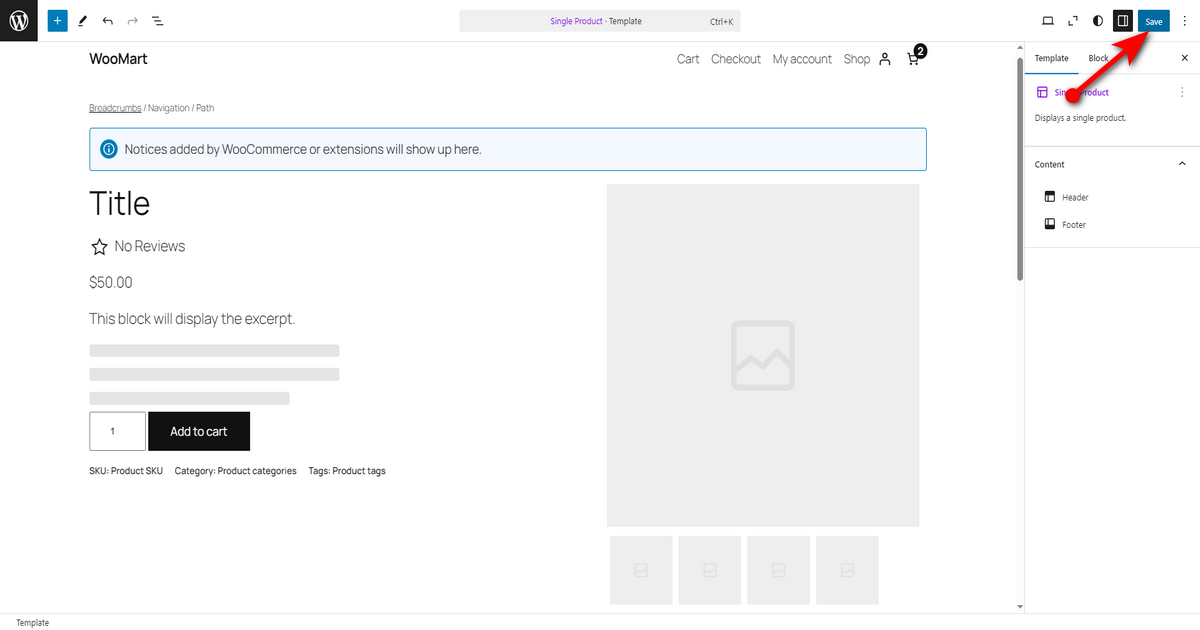
That’s how you create a single product page using WooCommerce’s template and Block Editor.
Create a Single Product Page in WooCommerce with ShopBuilder (Method 2)
It’s another method that you can follow to effortlessly and professionally create a single product page in your WordPress store. So, to utilize this method, we’ll use a plugin named ShopBuilder.
It’s an excellent store builder that lets you build WordPress store pages by dragging and dropping elements. Plus, it’s got several modules to enhance your store’s functionality. Let’s install and activate it.
Remember that since this plugin works with Elementor – a popular page builder, and WooCommerce, your WordPress website must have these two plugins installed.
Install and Activate ShopBuilder Plugin
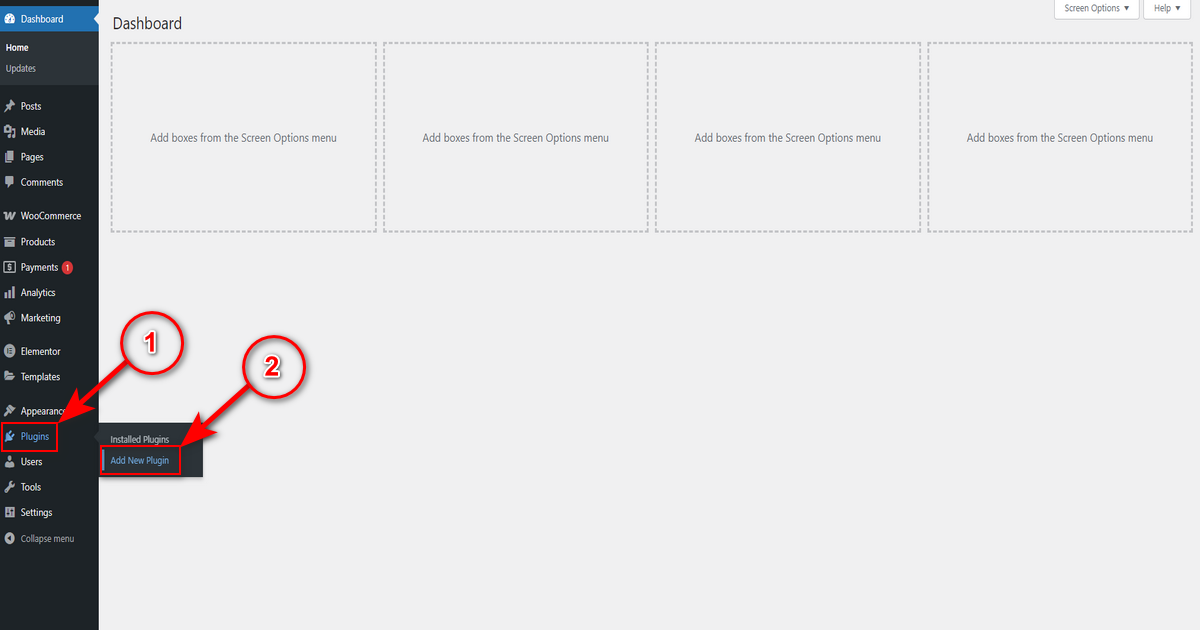
To install ‘ShopBuilder,’ navigate to your WordPress Admin Panel > Plugins > Add New Plugin.
Search for ‘ShopBuilder’ in “Search Plugins” field on the top right.
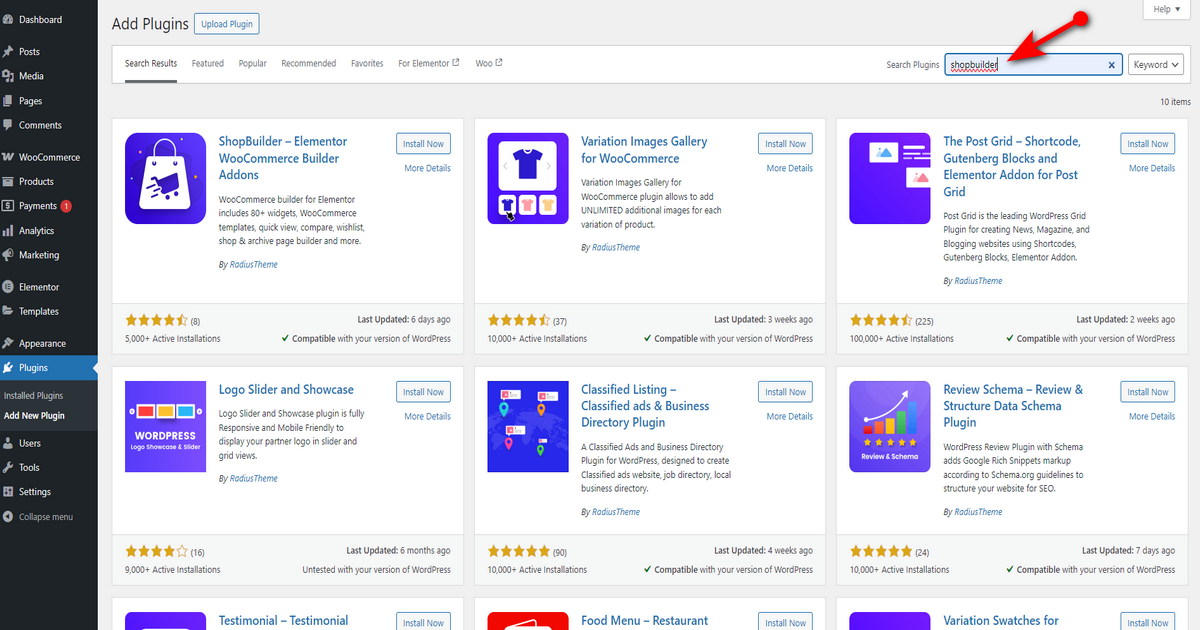
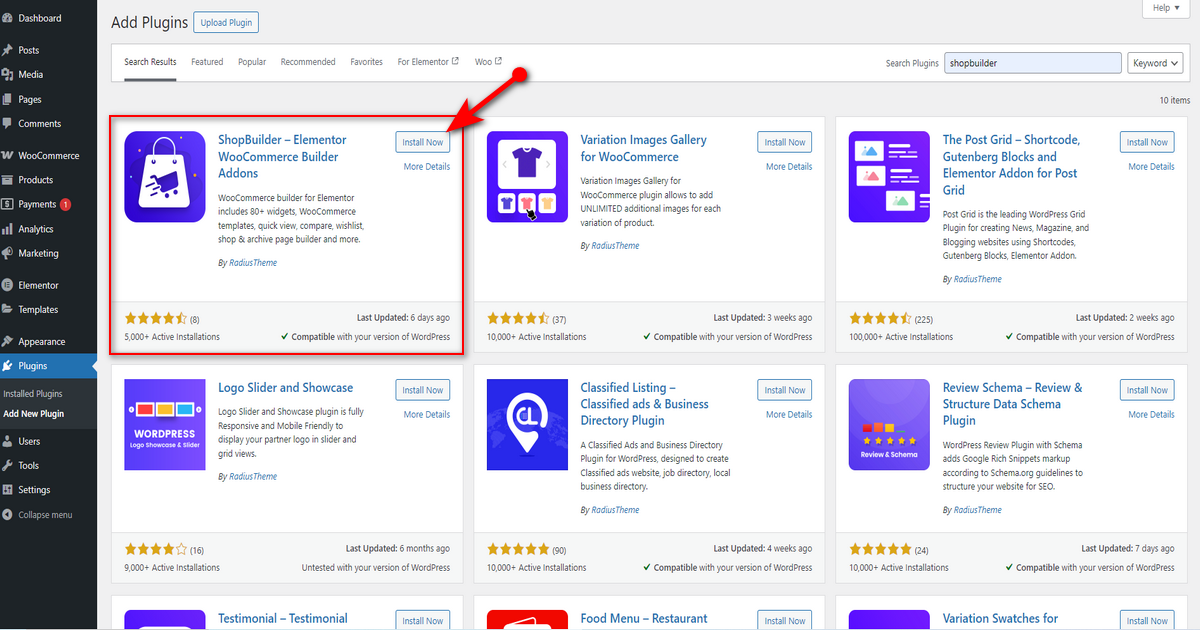
Afterward, press “Install Now” button of the marked plugin in the screenshot below.
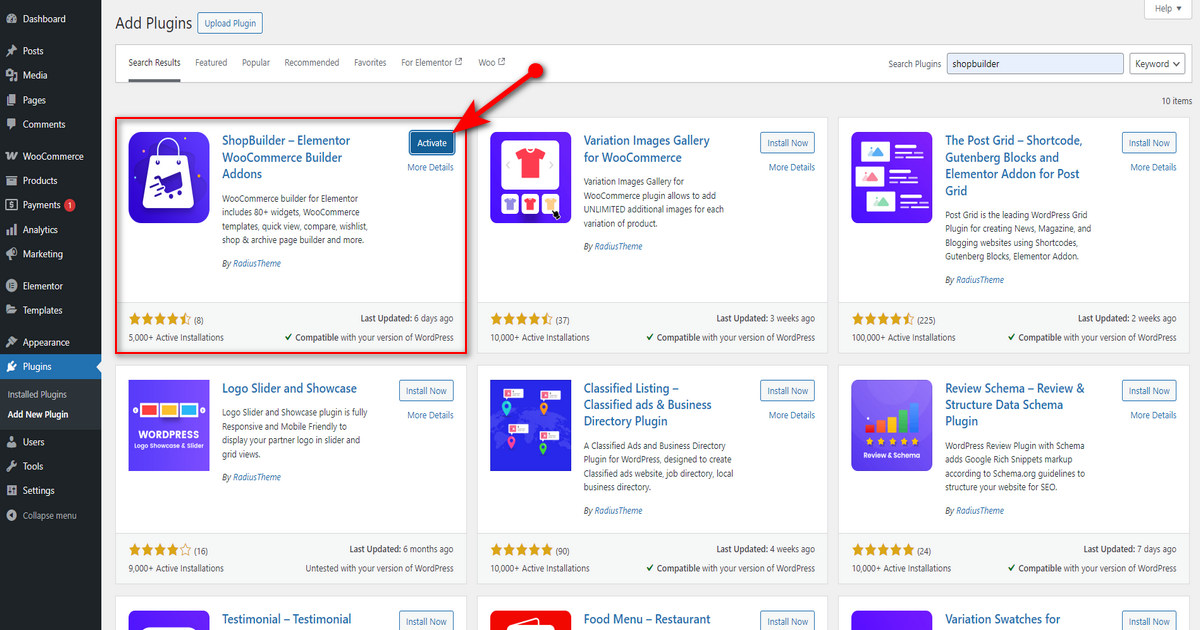
Now, click ‘Activate’ button to activate this plugin.
That’s it.
Build a Single Product Page Template with ShopBuilder
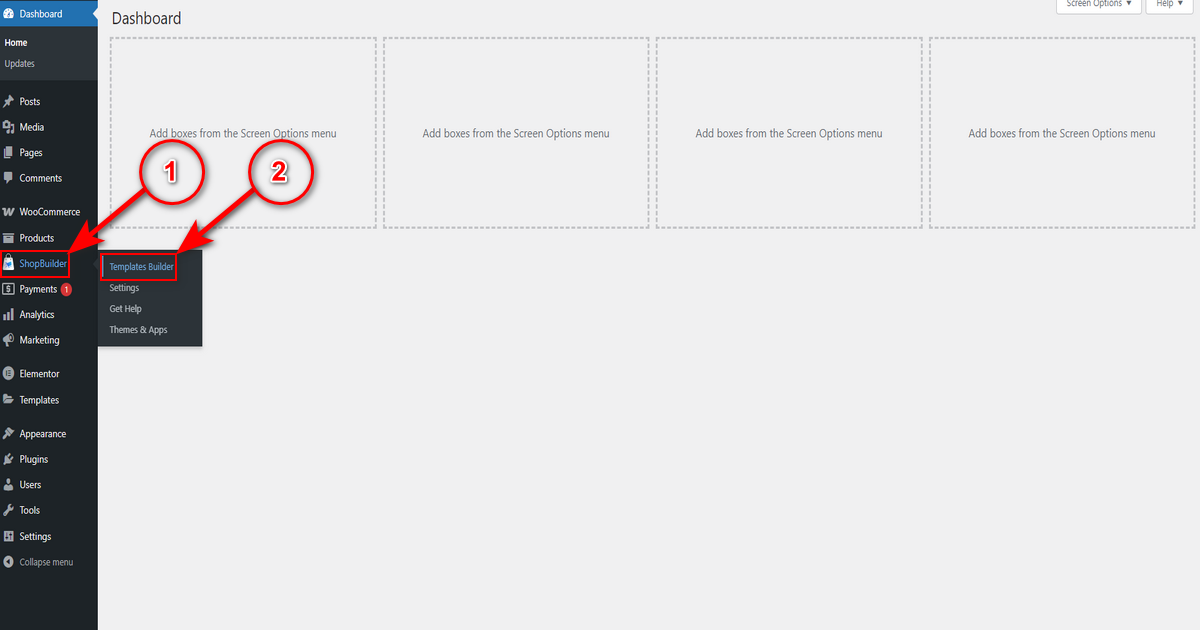
After installing and activating ShopBuilder, head to WP Admin Panel > ShopBuilder > Templates Builder.
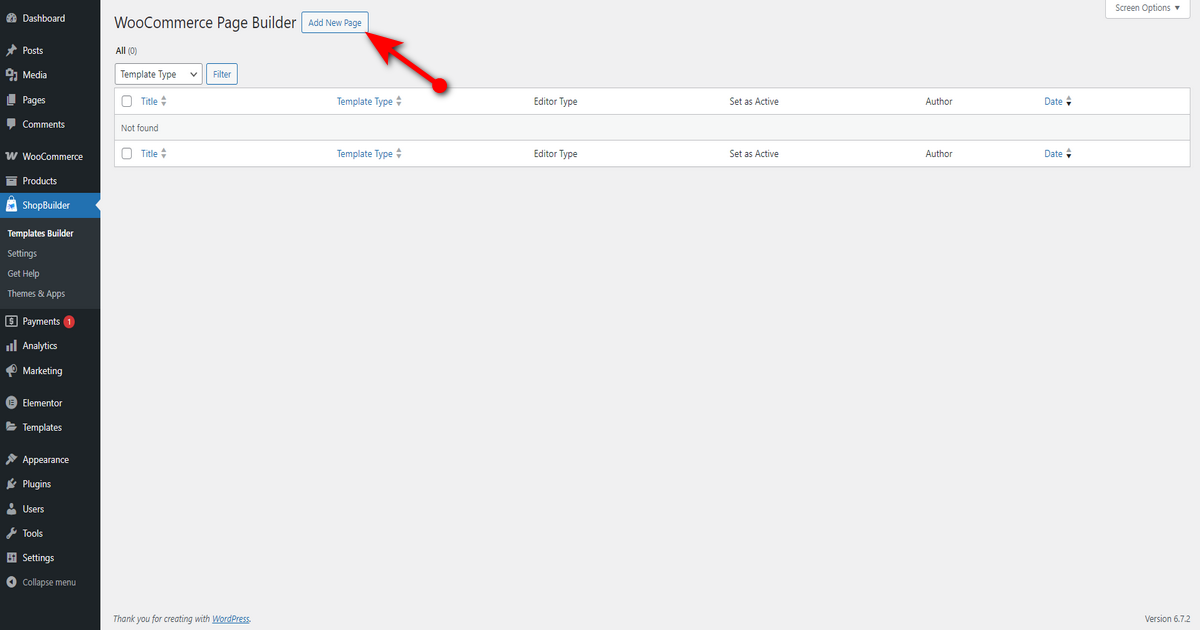
You’ll then see “WooCommerce Page Builder” window. Press “Add New Page” button to build a page.
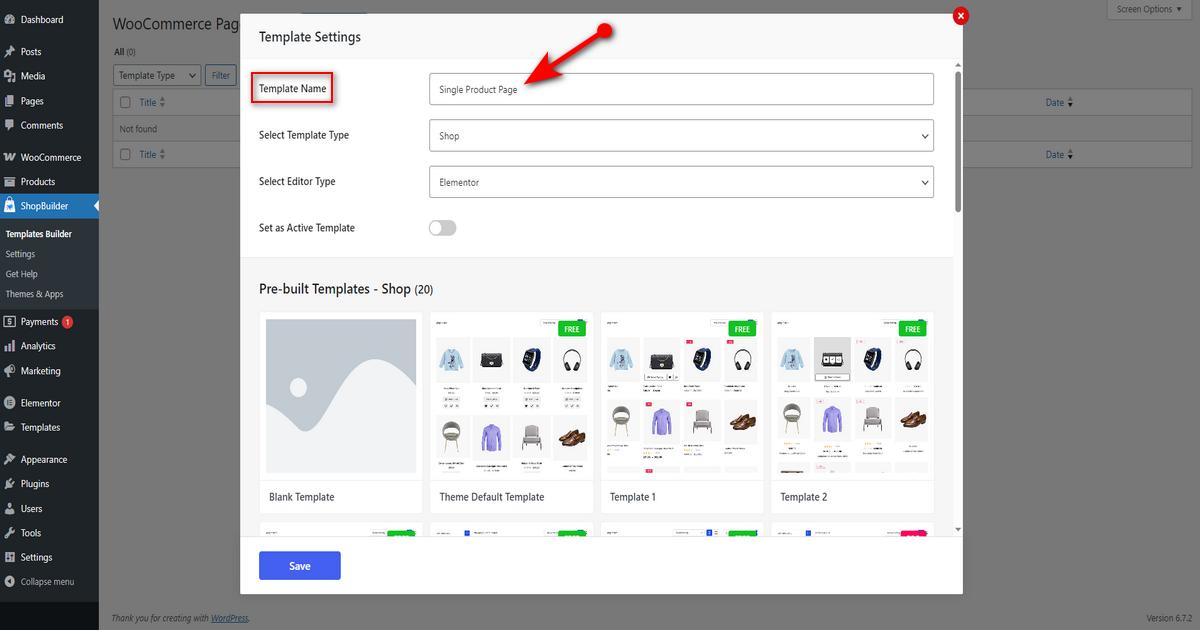
You’ll notice a pop-up titled “Template Settings.” Write your page name in the “Template Name” field.
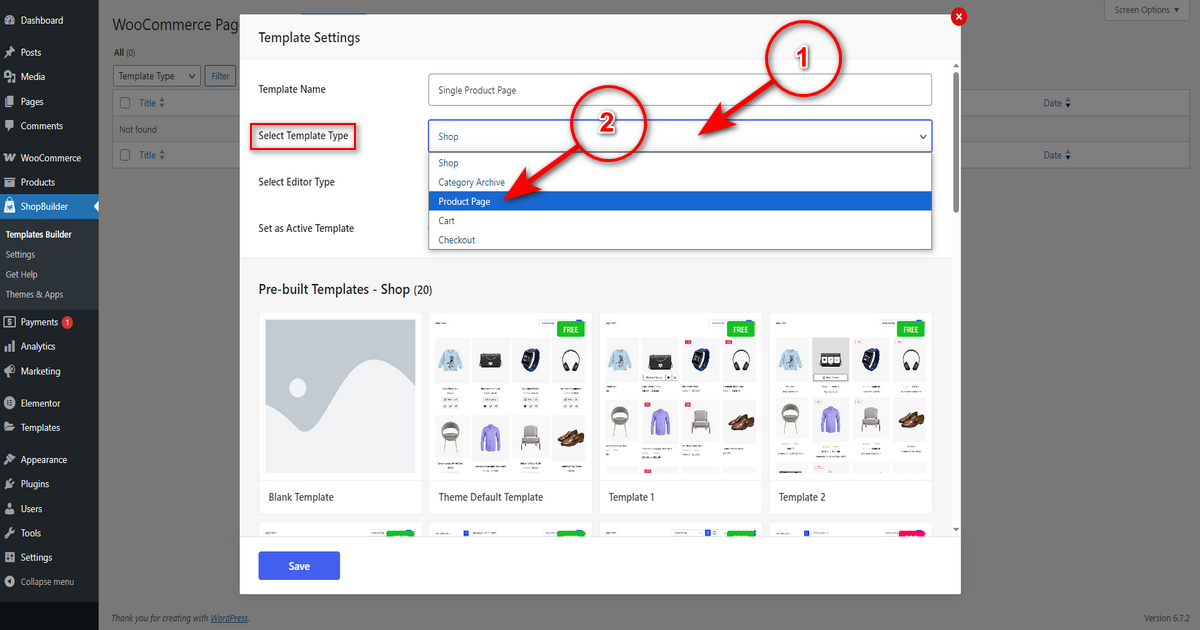
Then, choose “Product Page” template by clicking “Select Template Type” drop-down menu.
Once you select that page on that pop-up, you’ll see two new fields: Product Template For and Select Preview Product. You can explore these fields.
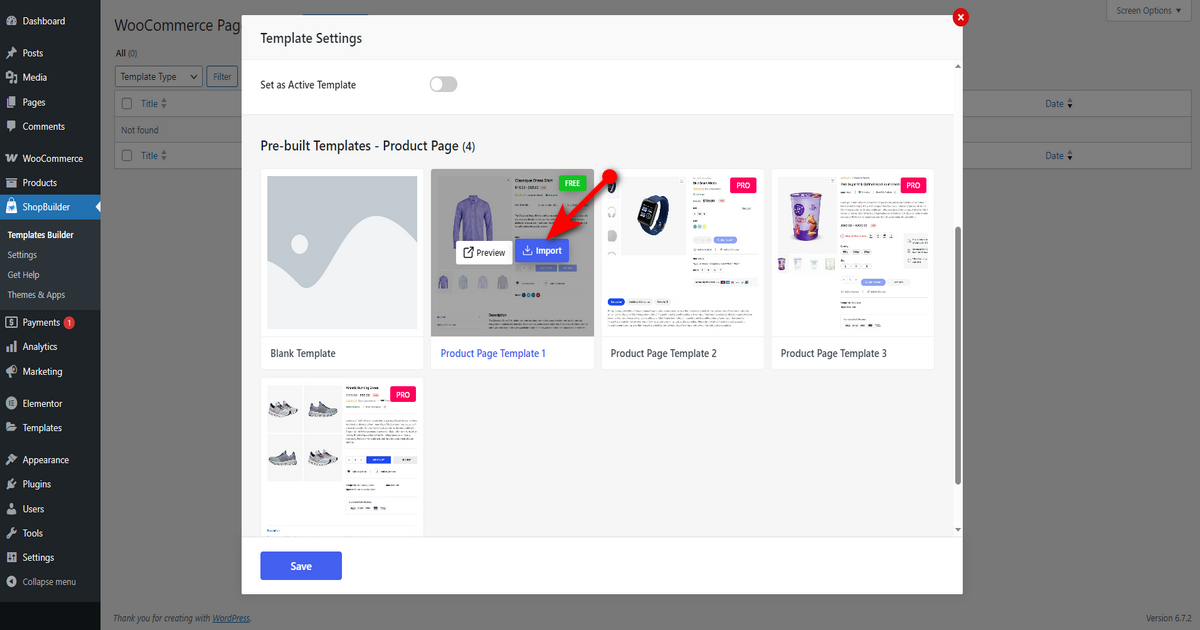
Then, scroll down to the “Pre-built Templates – Product Page” area, hover your mouse pointer over a free template, and click ‘Import’ button.
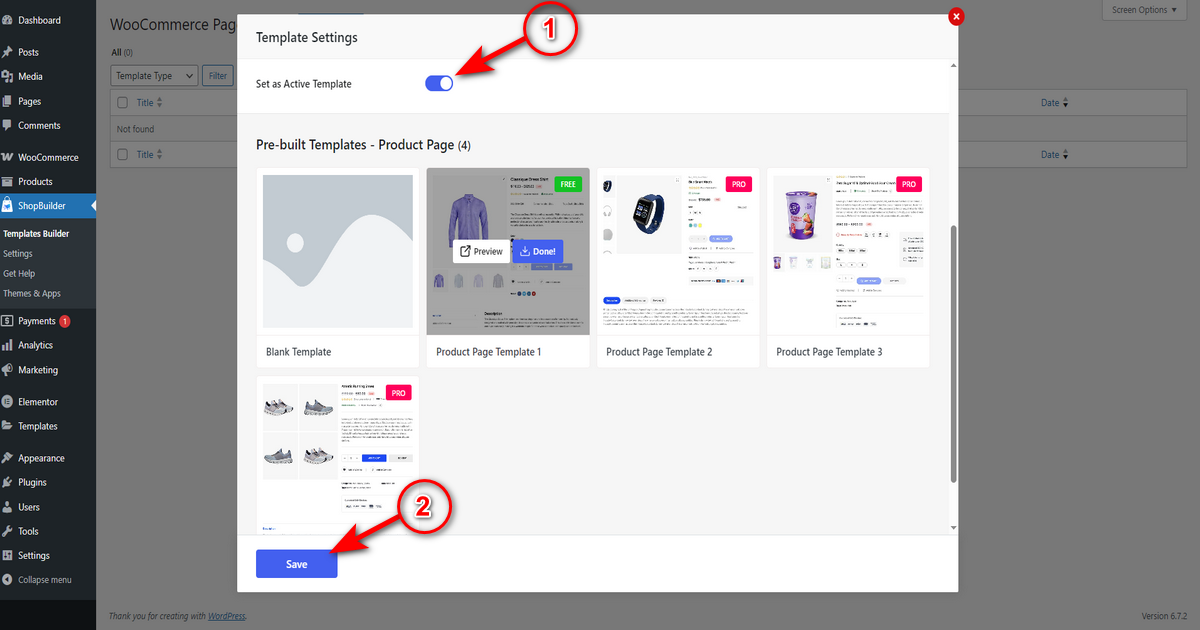
Now, turn on “Save as Active Template” switch and hit ‘Save’ button.
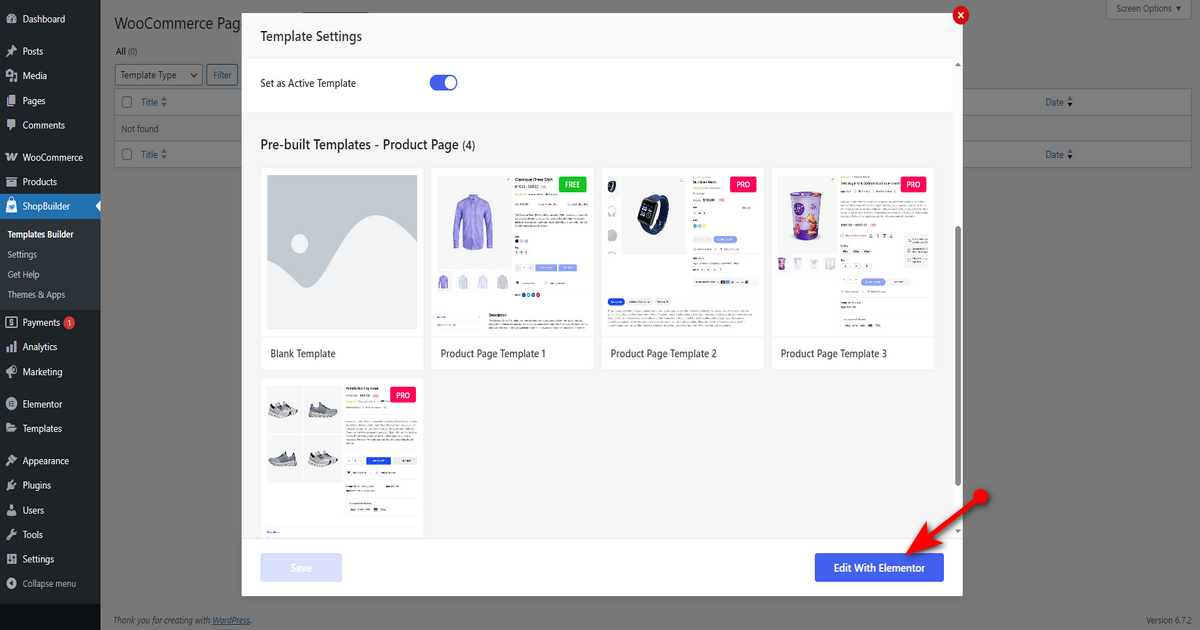
Finally, click “Edit With Elementor” button to edit the single product page.
Customize the Single Product Page with ShopBuilder
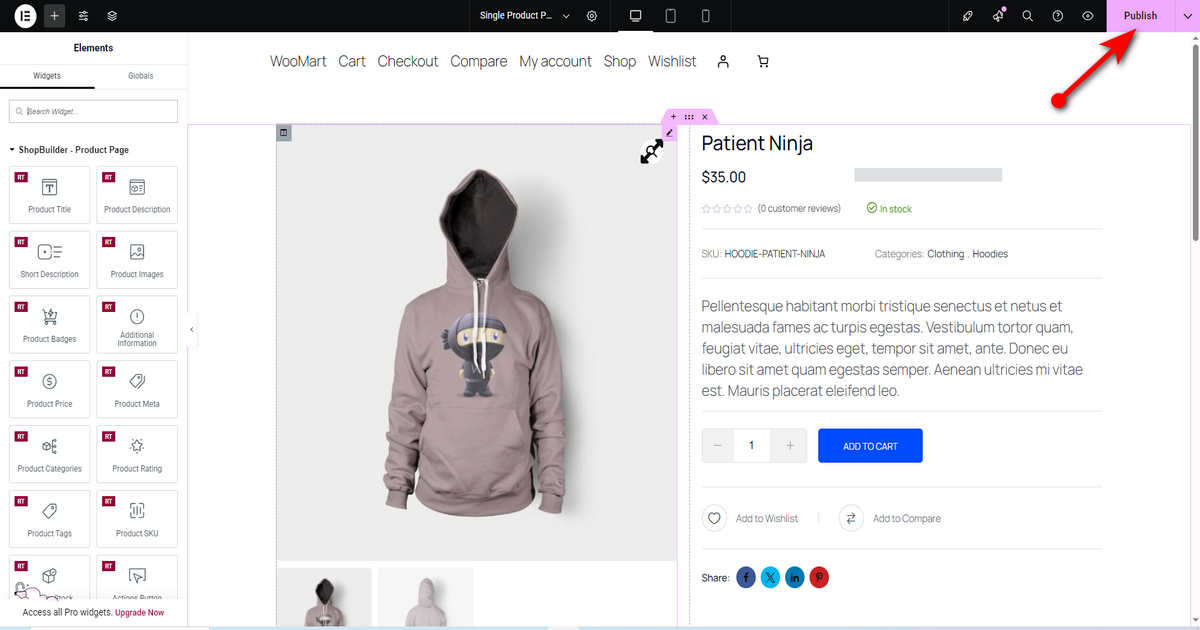
Okay, you can now customize this single product page if you don’t like the default layout. Utilize ShopBuilder’s widgets for Elementor to customize this page. See the animation below to understand how we edit this single product page with ShopBuilder.
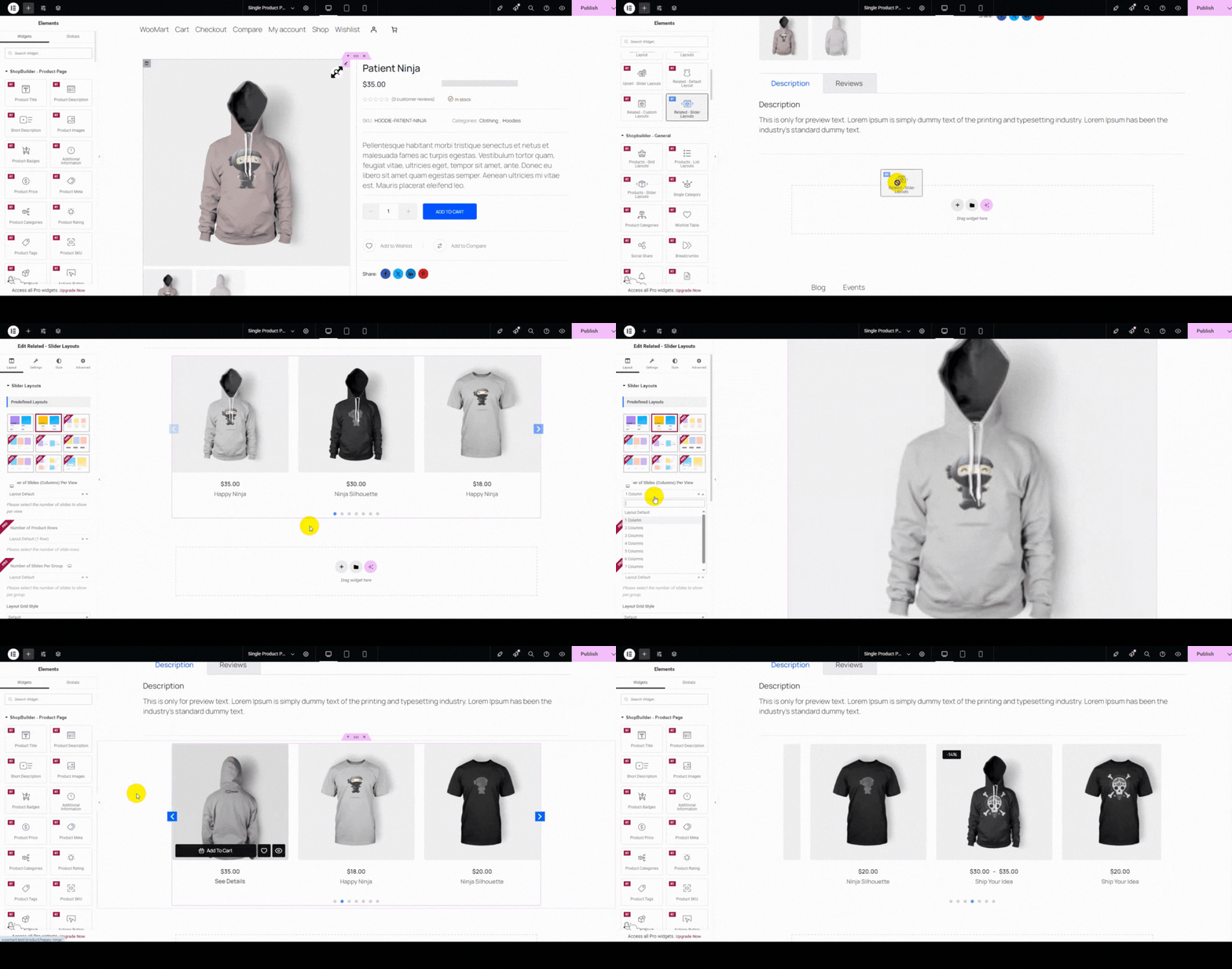
After that, hit ‘Publish’ button on the top right to publish this page.
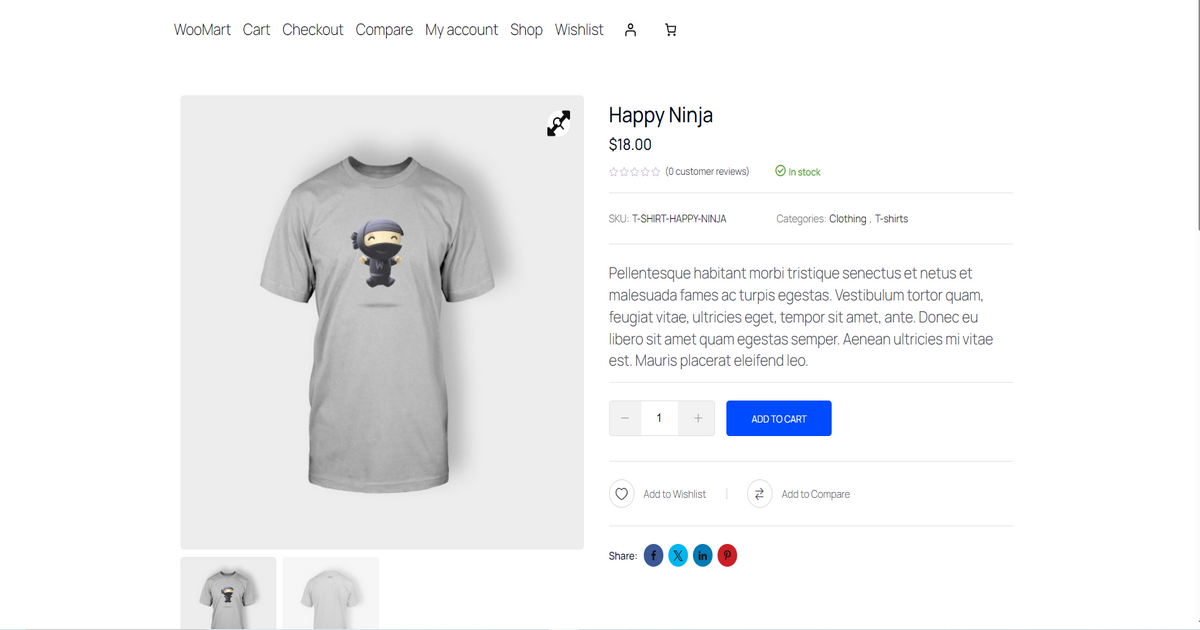
Okay, you can now visit a single product page to see the new layout.
Things to Consider While Building a Single Product Page
You need to consider a few factors while building a single product page in WooCommerce to improve user experience and increase dwell time and sales. Here’s what to take into account:
Add Related Products: Ensure to keep a section on the single product page to display related products. Also, don’t forget to use high-quality product photos for the main and related products.
SEO Optimization: While designing the single product page, ensure that the page has a relevant and descriptive title and meta description, and optimize that page with relevant product keywords for SEO benefits.
Live Chat: Include a live chat feature on a single product page to offer visitors unparalleled customer solutions.
Social Proof: Add customer reviews and testimonials on the single product page to build trust and increase conversions.
Clear Pricing and Shipping Information: Include product price and shipping costs in the single product page and ensure customers can clearly see these prices.
These are some factors to consider when creating a single product page in a WordPress store.
👉 Helpful Post: How to Remove Reviews from WooCommerce Product Page
Now Over to You – Professionally Build a Single Product Page
That’s all with this article regarding how to create single product page in WooCommerce. From now on, we hope you can easily build a single product page in your WordPress store. As you know, we’ve shown two methods to accomplish this task.
We recommend you follow either of these methods to create a single product page that draws customers. Nonetheless, we emphasize the 2nd method more if you genuinely want to build exceptional product pages.
The beauty of the 2nd method is that it won’t only help you build a single product page, but it also lets you create a high-converting WooCommerce store. Try it out.