When shoppers see a “Buy One Get One” deal next to an equal percent-off deal, three times as many pick the BOGO. The math can be the same. The word “free” just wins.
So a BOGO offer is one of the fastest ways to lift sales in your WooCommerce store.
The problem? WooCommerce does not do real BOGO on its own. You need the right tool and the right setup. This guide shows you how to add a Buy One Get One Offer in WooCommerce, step by step.
What Is a BOGO Offer in WooCommerce?
A BOGO offer is a deal where a customer buys one product and gets another one free or at a discount. BOGO stands for “Buy One, Get One.”
In WooCommerce, a BOGO offer runs on a rule. The rule says “if a shopper buys product X, they get product Y free or cheaper.” The store checks the cart and adds the reward on its own.
BOGO is one type of a wider group called Buy X Get Y (BXGY). Every BOGO is a Buy X Get Y deal. But Buy X Get Y can also mean “buy 2, get 1 free” or “spend $50, get a gift.”
Why Offer BOGO Deals in Your Store?
BOGO deals are popular for a reason. In one survey, 66% of shoppers said BOGO is their favorite discount type, and 93% have used one at least once (via Uniqodo).
Here is why store owners use them:
- Sell more per order. Shoppers add extra items to unlock the deal. This raises your average order value.
- Clear old stock. BOGO helps you move slow products fast.
- Win back carts. A free-item offer can pull back a shopper who left.
- Build loyalty. A good deal brings people back without paid ads.
- Feel like more value. “One free” feels better than “50% off two,” even when the price is the same.
Popular Types of BOGO Offers You Can Run
BOGO does not always mean a free item. You can shape the deal to fit your margins. Here are the common types.
| BOGO Type | What It Means | Best For |
| Buy One Get One Free | Second item costs nothing | Fast sales, clearing stock |
| Buy One Get One 50% Off | Second item is half price | Protecting your margins |
| Buy X Get Y Free | Buy 2 (or more), get 1 free | Raising order value |
| Buy X Get Y Discounted | Buy X, get a cheaper add-on | Cross-selling related items |
| Free Gift Offer | Buy X, get a small gift | Rewarding buyers, launches |
Can You Create a BOGO Deal in WooCommerce Without a Plugin?
No. Plain WooCommerce cannot run a true BOGO deal on its own.
The built-in coupon tool can do simple discounts. Think “$10 off” or “20% off.” It cannot say “buy this one product and get another one free on its own.” That logic needs a BOGO plugin.
So a BOGO plugin is the only reliable way to do this.
How to Add a Buy One Get One Offer in WooCommerce
We will use the ShopBuilder Buy X Get Y (BOGO) module for this guide. It runs BOGO deals on autopilot. It also shows the offer on your shop page, product page, and cart, so shoppers notice it.
Here is the full setup.
Step 1: Install ShopBuilder and Enable the Module
First, install and activate ShopBuilder on your WooCommerce store. Then open the module list and turn on the Buy X Get Y (BOGO) module.
The module has three tabs: General, Create Rules, and Style.
Step 2: Set the General Options
Open the General tab. Here you control how the offer shows to shoppers.
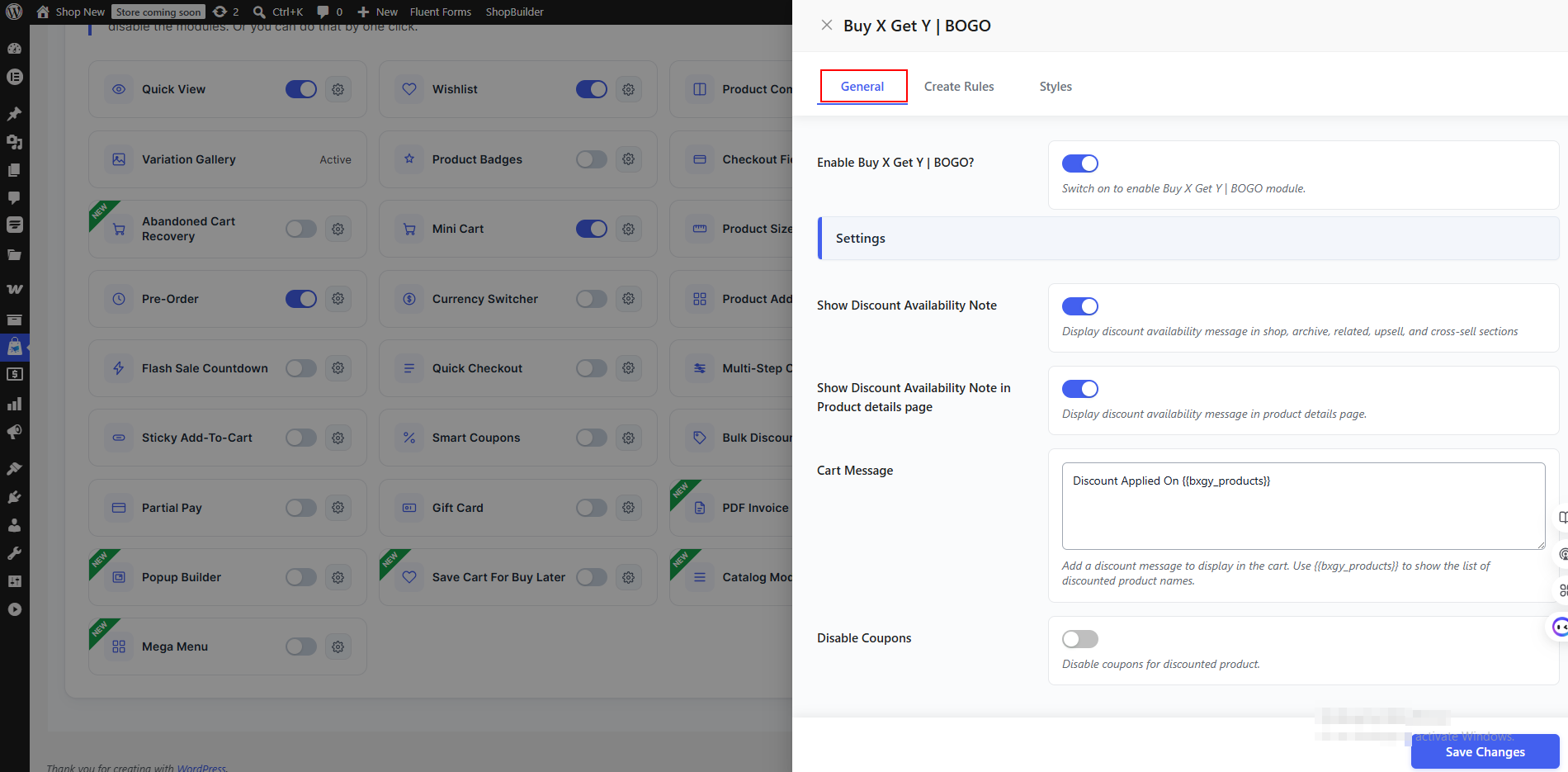
- Enable Buy X Get Y. Toggle this on to turn the module live.
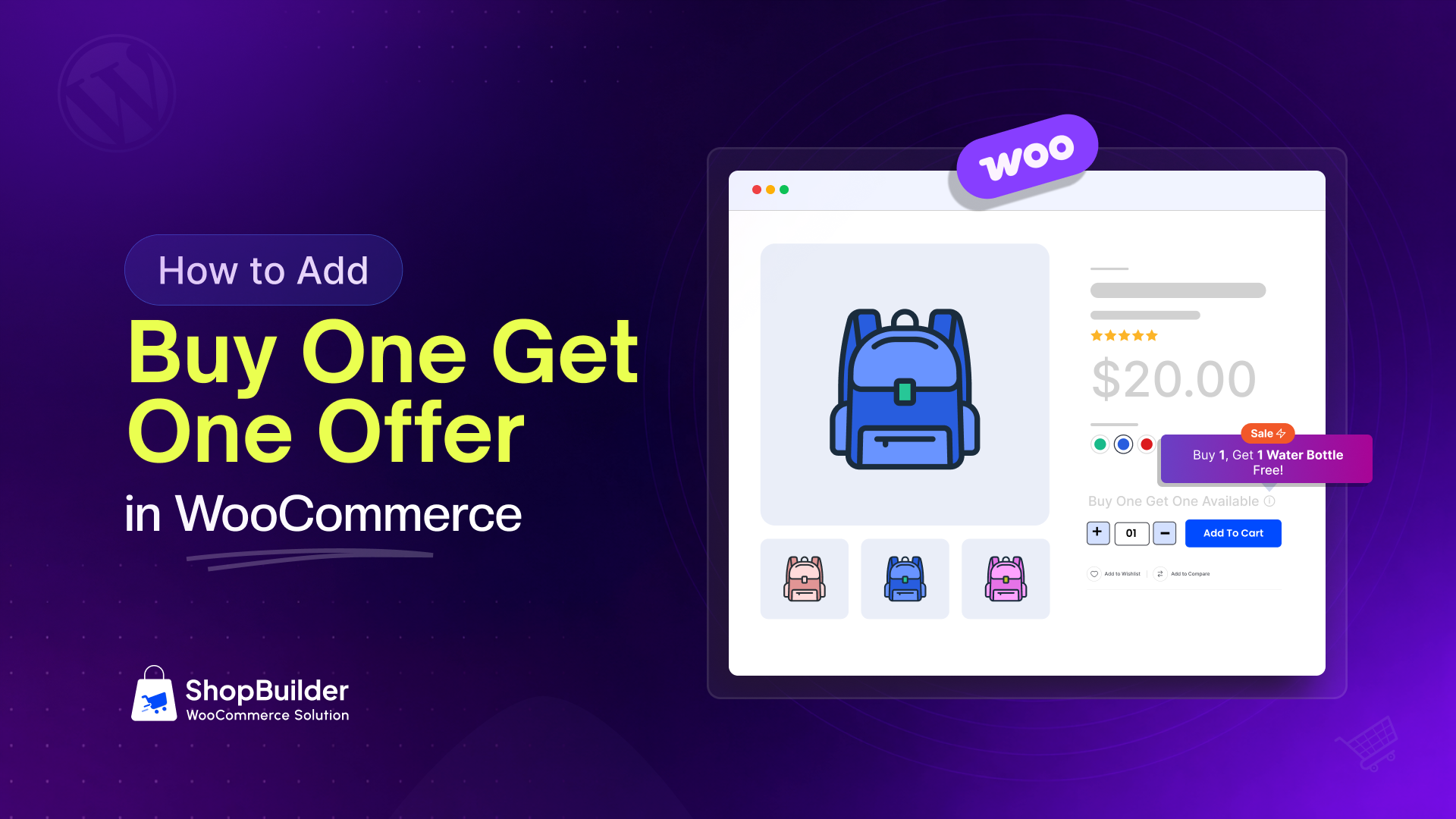
- Show Discount Availability Note. Turn this on to show a deal note in your shop, archive, related, upsell, and cross-sell areas.
- Show Note on Product Page. Turn this on to show the note on each product page.
- Cart Message. Add a message for the cart. Use the tag {{bxgy_products}} to list the free or discounted product names.
- Disable Coupons. Turn this on to block coupon codes on the discounted products. This stops shoppers from stacking deals.
Step 3: Create Your BOGO Rule
Open the Create Rules tab. Click Add New to start a rule.
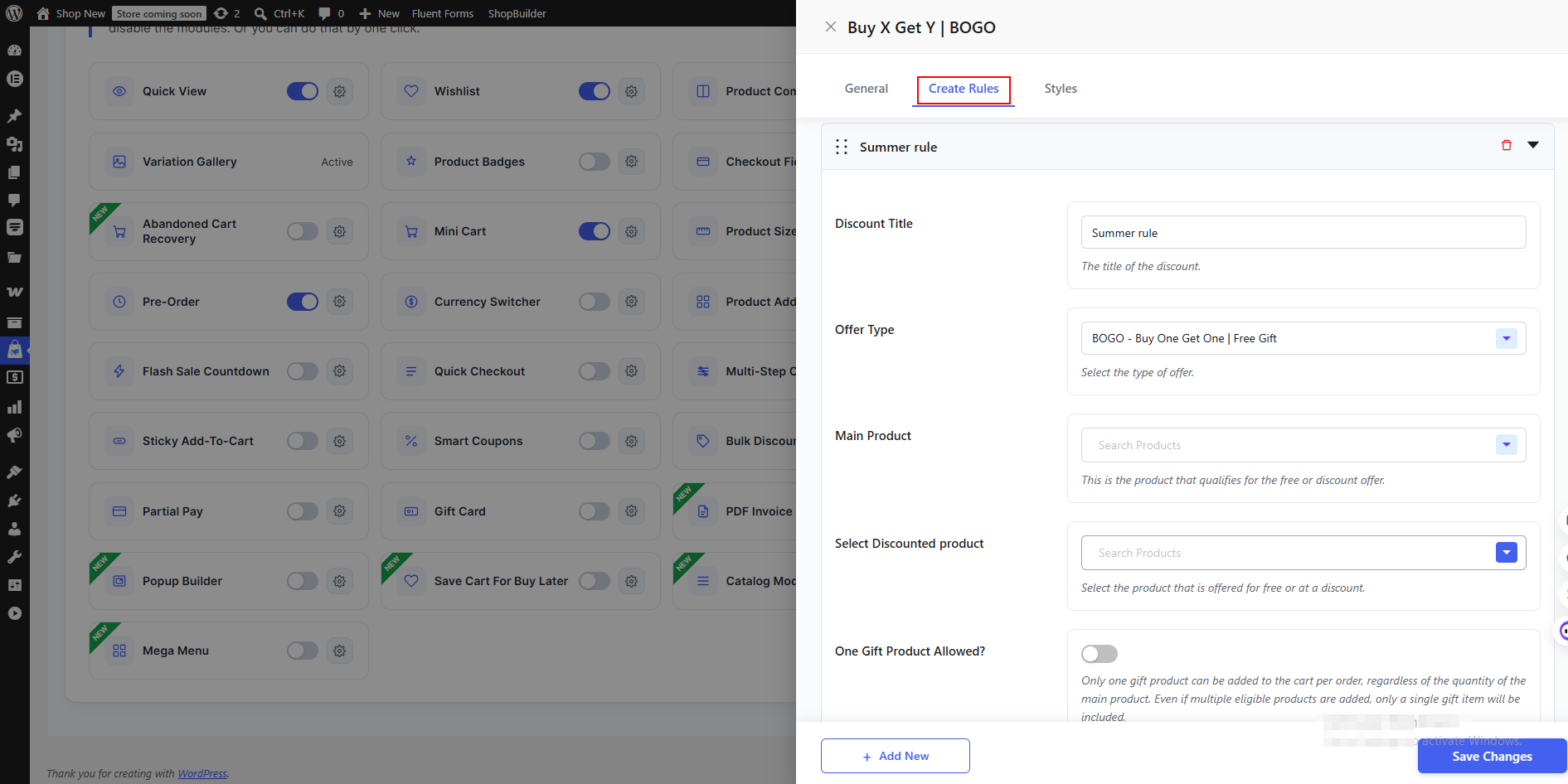
- Discount Title. Name your deal. For example, “Summer BOGO.”
- Offer Type. Pick BOGO (Buy One Get One / Free Gift) or Buy X Get Y.
- Main Products. Pick the products a shopper must buy. These trigger the deal.
- Discounted Products. Pick the product the shopper gets free or cheaper.
- One Gift Product Allowed. Turn this on to limit the reward to one gift per order. Even if the cart has many items, only one gift is added.
- Select User Role. Choose who gets the deal. Leave it blank to include everyone.
Step 4: Set a Date Range (Optional)
Want the deal to run for a set time? Turn on Date Range.
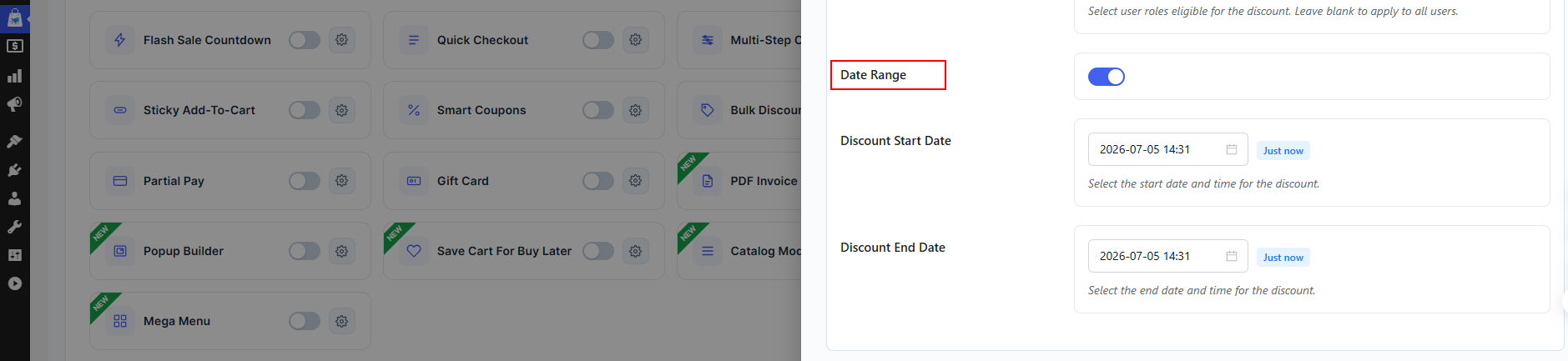
- Start Date. Pick when the deal goes live.
- End Date. Pick when it ends.
A time limit adds urgency. That often pushes shoppers to act now.
Then click Save Changes.
Step 5: Style the Offer (Optional)
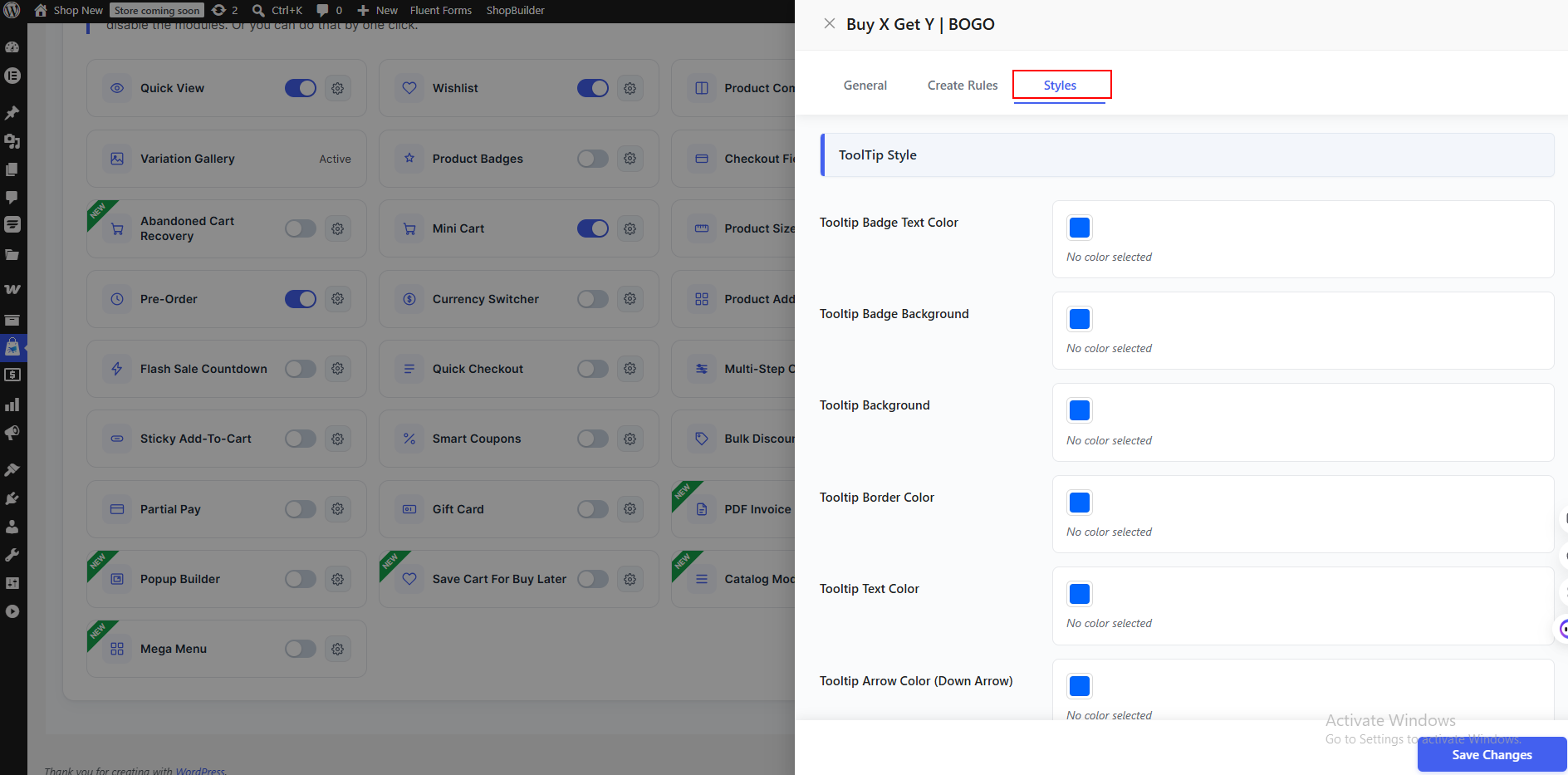
Open the Style tab to match the deal to your brand. You can set the tooltip colors, badge text, font size, and spacing. You can style both the shop page and the product page.
That is it. Your BOGO deal is now live.
How to Set a BOGO Deal on a Single Product
Want a special rule for just one product? You can override the global rule on that product page.
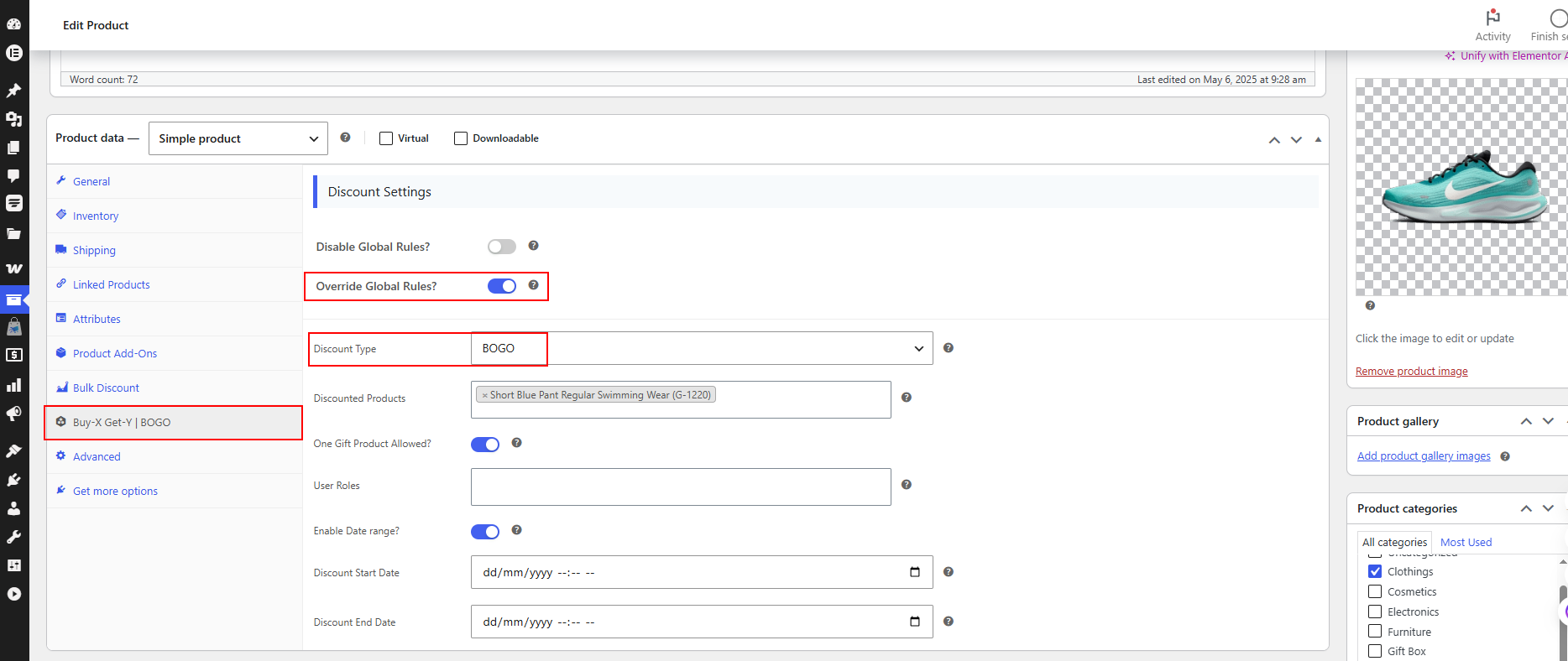
- Go to Products → All Products and edit the product.
- In the add-ons area, turn on Override Global Rules.
- Pick the Discount Type (BOGO or Buy X Get Y).
- Choose the Discounted Products for that item.
- Set One Gift Product Allowed, User Role, and a Date Range if you want.
Now that one product has its own deal, apart from your store-wide rule.
What Shoppers See on the Front End
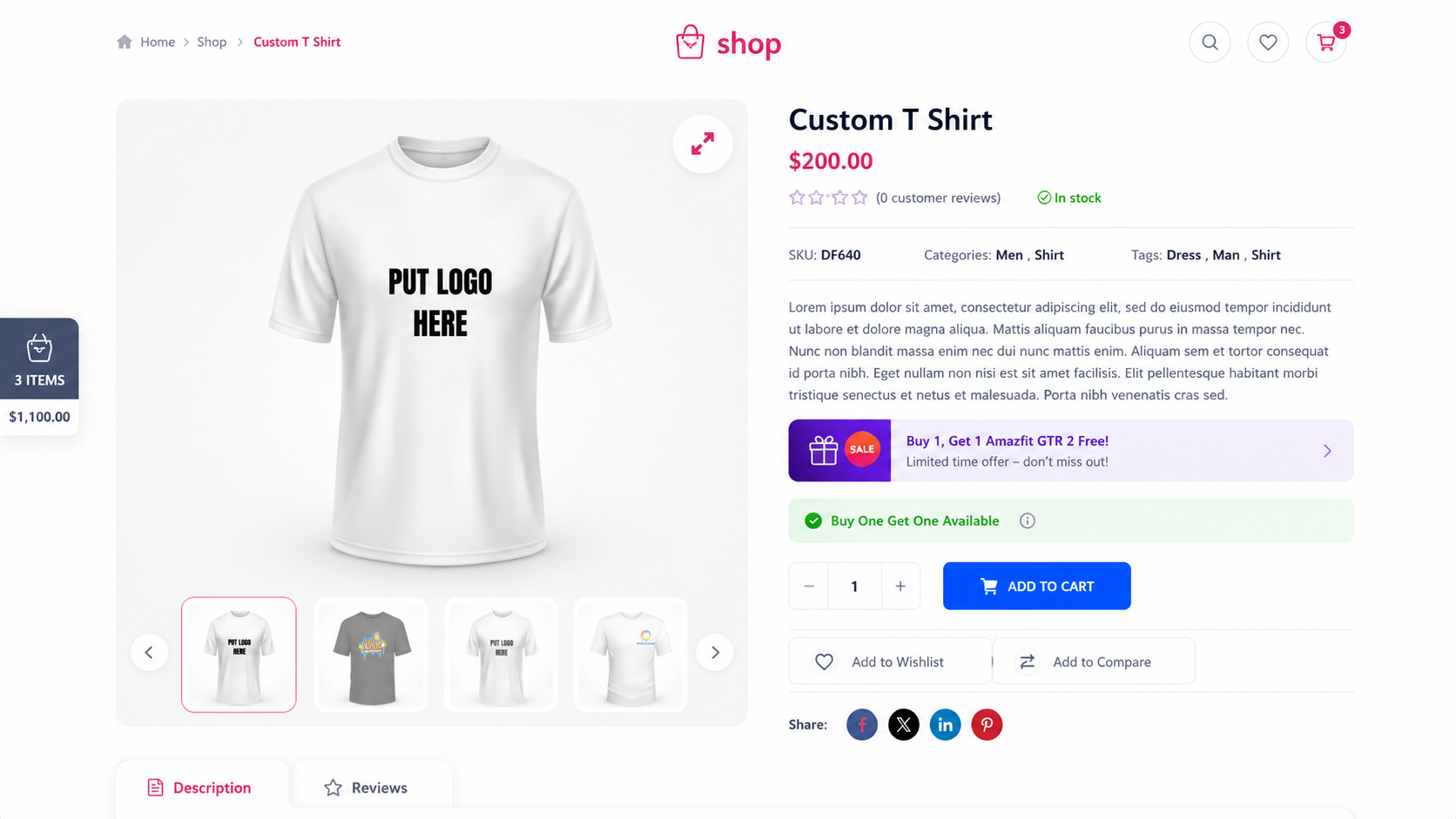
A good BOGO deal only works if shoppers notice it. With the module on, the offer shows in three key spots.
- Shop page. A discount tooltip appears on the product, so shoppers see the deal while they browse.
- Product page. A deal note and tooltip show the offer clearly.
- Cart page. The free or discounted product shows in the cart, so the reward is easy to spot.
This visibility matters. Personalized BOGO offers can lift conversions by up to 40% over generic ones (per Opensend data cited by DontPayFull).
The BOGO Math Most Store Owners Get Wrong
This is where many stores lose money. The headline and the real discount are not the same.
“Buy One Get One Free” on two equal-priced items is a 50% discount on that pair. But “Buy 2, Get 1 Free” is not 50% off. It is about 33% off, because the free item spreads across three items, not two.
So always run the numbers before you launch. A “free” item can cost more than you think.
Tips to Run a BOGO Deal Without Losing Money
Most guides stop at the setup. Here is what they skip. These tips keep your BOGO profitable.
- Use high-margin products. Pick items with room to give. Never BOGO a product you barely profit on.
- Make the free item the cheaper one. Give away the lower-cost item, not your best seller at full price.
- Set a clear end date. This limits how long you lose margin. It also builds urgency.
- Cap the gift. Turn on “One Gift Product Allowed” so one order cannot drain your stock.
- Bundle to raise cart value. Pair a low-cost gift with a product that needs a push.
- Block coupon stacking. Turn off coupons on BOGO items so shoppers cannot double-dip.
- Watch your results. Track which deals sell and which just cut your margin.
Common BOGO Mistakes to Avoid
Store owners often trip on the same things. Watch for these.
- Fake savings. Do not raise the first item’s price to cover the “free” one. Shoppers notice. It also breaks trust, and some retailers have faced lawsuits over it.
- Hidden deals. If shoppers cannot see the offer, they will not use it. Show it on the shop, product, and cart pages.
- No time limit. An always-on BOGO trains people to wait for deals. Run it in short bursts.
- Wrong products. A BOGO on a slow, low-margin item helps no one. Pick items shoppers actually want.
- Too complex. “Buy 3, get 2 at 40% off with a gift” confuses people. Keep it simple.
Frequently Asked Questions
Can I create a BOGO deal in WooCommerce for free?
Yes, in part. Some plugins offer basic BOGO rules in a free version. This is often enough for a simple “buy X, get Y” deal on set products. More advanced rules, like offers on any product or scheduled deals, may need a pro version.
Does the free product get added to the cart on its own?
It depends on the rule. If your deal is for one set product, most plugins add the free item on their own. If the deal covers a category or any product, the shopper picks and adds the second item themselves.
Can I run a BOGO deal on product variations like size or color?
Yes. You can set a specific variation as the “buy” item or the “get” item. You can also use a category rule, like “buy any hoodie, get any t-shirt half off.”
How is “Buy 2 Get 1 Free” different from “Buy One Get One Free”?
“Buy One Get One Free” gives one free item for one bought. On equal prices, that is 50% off the pair. “Buy 2 Get 1 Free” needs two items bought first. That works out to about 33% off, not 50%.
Will a BOGO deal slow down my store?
A well-built module runs the check in the background and should not slow your site. Keep your rules simple and your plugin updated for the best speed.
Can I limit a BOGO deal to certain customers?
Yes. Many modules let you set a user role. So you can run a deal for members, wholesale buyers, or logged-in users only.
Start Your First BOGO Deal Today
A BOGO offer is one of the easiest ways to boost sales, clear stock, and give shoppers a deal they love. Plain WooCommerce cannot do it, but a BOGO module can, in just a few clicks.
Pick your product. Set the rule. Add an end date. Then watch your average order value climb.
The best deal is the one you launch. So set up your first BOGO offer now and test it this week.